FIGHTHUB Admin Guide
/
↑↓ to navigateEnter to jump
Fight For Fitness Admin Guide

Your Admin HQ Playbook

Everything FightHub Admin can do, for Super Admin and Branch Admin alike, in eleven levels. Shared duties, branch scoping, and the handful of things only a Super Admin can touch, all mapped out and verified against the live code.

Both roles Super Admin only Branch Admin note

A card with no badge applies equally to Super Admin and Branch Admin; badges only appear where something's restricted or behaves differently.

11 levels to master 24 admin pages: Dashboard to Admin Accounts 5 Super Admin–only sections 15 min auto-logout for security 0 guesswork, verified against the live code
1Level 1Getting Started 2Level 2Dashboard 3Level 3Schedule & Rosters 4Level 4Staff Hub 5Level 5Compete & PT 6Level 6Members 7Level 7Front Desk 8Level 8Finance 9Level 9Inbox & Analytics 10Level 10Super Admin Toolkit 11FAQGood to Know

New admin account? Tick these off in your first session and you're ready to run the floor.

  • Log in with your admin username + password
  • Confirm whether you're Super Admin or Branch Admin
  • Scan the Dashboard for alerts and pending requests
  • Open Members and find a test account
  • Try the All / Super Admin / Branch Admin toggle above
  • Bookmark this guide for later
0 / 6 done
1
Level 1 of 11 ~3 min read

Level 1: Getting Started

Everything here happens once, right when you're set up as an admin. Get through it and the rest of Admin HQ makes a lot more sense.

01

Logging in: username & password, not phone + PIN

Admin login works differently from the Member and Coach portals. Members and Coaches log in with a phone number + PIN. Admin logs in with a username + password, set up by a Super Admin on the Admin Accounts page (Level 10).

  1. Go to your admin login page.
  2. Enter the username and password a Super Admin gave you.
  3. You'll land on the Dashboard, Admin HQ's home base.
Forgot your password? You can't reset your own; only a Super Admin can reset it for you, from Admin Accounts.
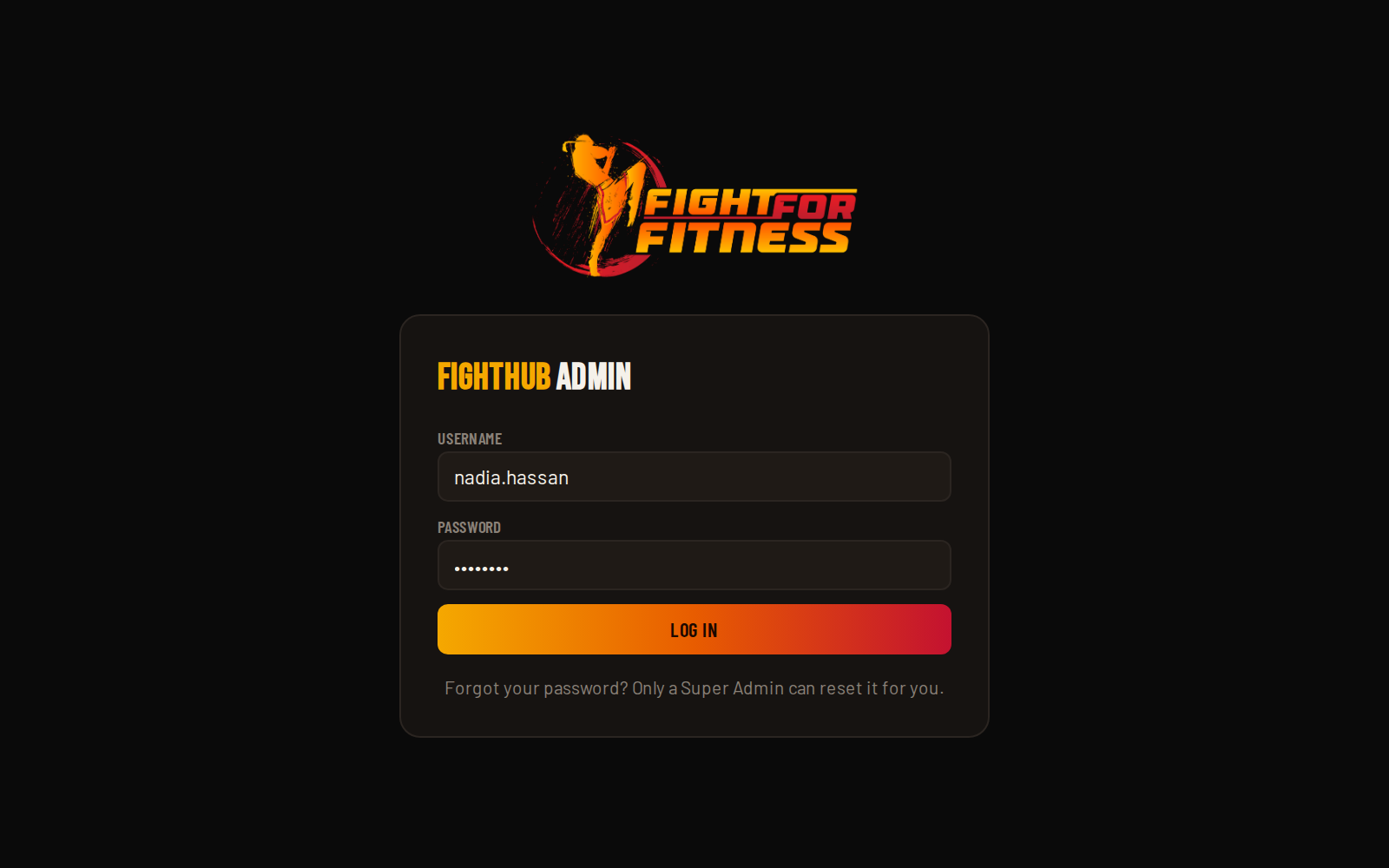
FightHub Admin login screen
Screenshot coming soonscreenshots/a01-login.png
02

Super Admin vs. Branch Admin, in plain terms

Every admin account is one or the other:

Super Admin sees every branch Branch Admin sees one branch only Same login screen, same app Role is set when the account is created

Branch Admin isn't a stripped-down app. It's the exact same pages, automatically filtered to their own branch's members, schedule, payments and so on. A handful of pages (5 of them) are Super Admin only; those are flagged with the gold badge everywhere in this guide, and covered together in Level 10.

03

Session & security basics

15-min auto-logout when idle Same timeout as Member & Coach Dark / light mode toggle in sidebar Sidebar can collapse to icons only

Stepping away for more than 15 minutes signs you out automatically, and you'll need to log back in with your username and password. This protects member data if a device is left unattended at the front desk.

04

The sidebar, section by section

The sidebar is grouped exactly the way this guide is: Main (Dashboard, Schedule, Rosters), Team Ramakien Hub (internal staff tools), Compete (Sparring), Personal Training, Members (Members, Directory, Trials, Coaches), Finance (Membership, Payments, Receipts, Shop), and Manage (Inbox, Analytics). Branch Admins see every one of those. Only Super Admins additionally see Packages, Shop Catalog, Legal Content, Branches and Admin. Branch Admins don't get those links at all, not even greyed out.

💡
Pro tip

On mobile, the sidebar collapses into a bottom bar with a "More" tray for anything that doesn't fit, same items, just tucked away until you tap More.

2
Level 2 of 11 ~4 min read

Level 2: Dashboard, Your Command Center

The Dashboard is where every shift should start. It surfaces everything waiting on you before you go looking for it.

01

The KPI tiles up top

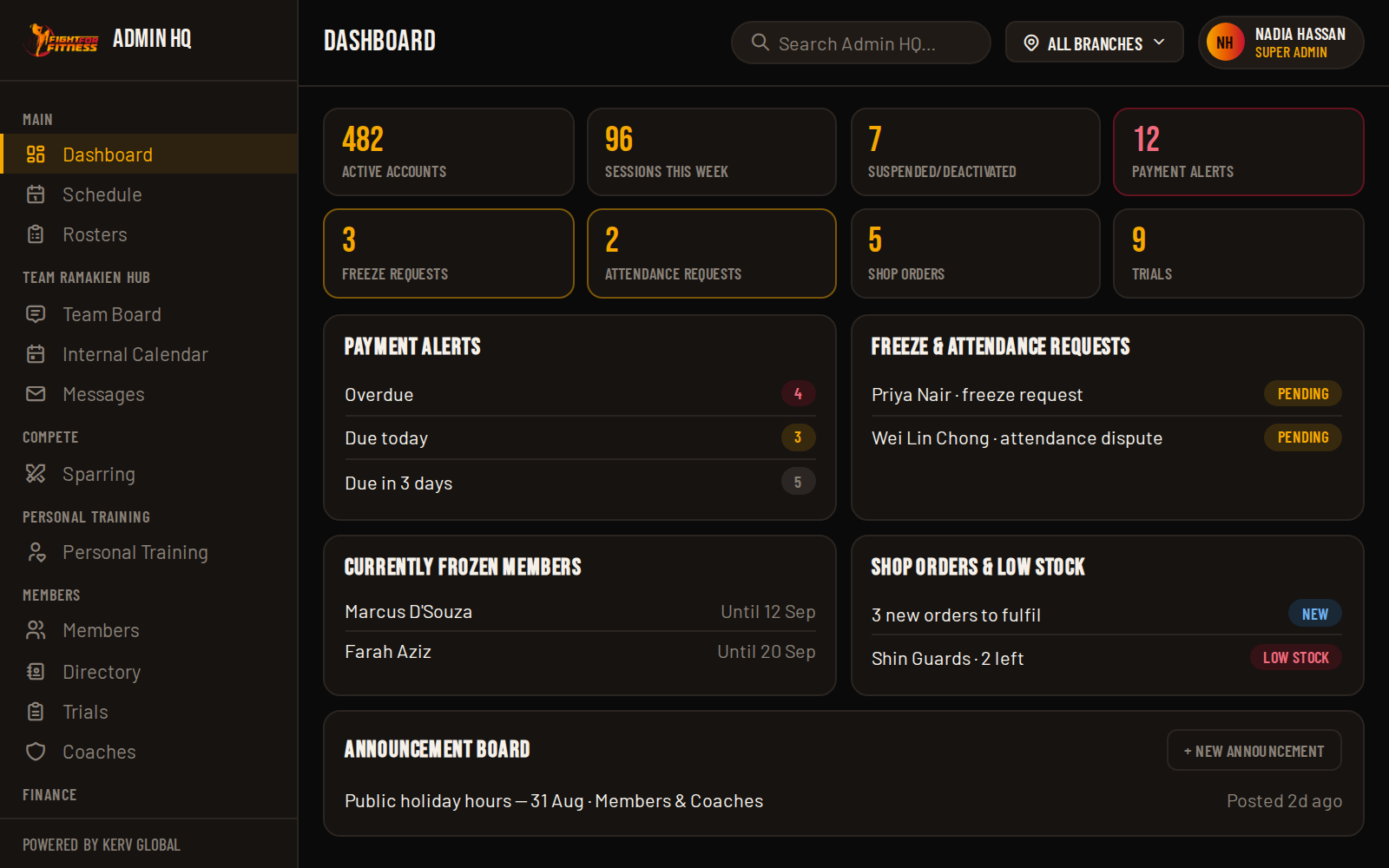
Each tile is a live count, and most are clickable shortcuts straight to the relevant page:

Active accountsThis week's sessionsSuspended / deactivated Payment alertsFreeze requestsAttendance requests Shop ordersTrials

A tile with a coloured border (red for payments, gold for freeze/attendance requests) means something on it needs your attention right now; an empty tile means you're caught up.

FightHub Admin dashboard with KPI tiles
Screenshot coming soonscreenshots/a02-dashboard.png
02

Payment alerts

Split into three buckets so you know what's actually urgent:

  1. Overdue: already past the due date.
  2. Due today: renew now or it lapses.
  3. Due in 3 days: a heads-up window to follow up.

Click through to Payments (Level 8) to act on any of them.

03

Freeze & attendance requests

Members can request a membership freeze or dispute an attendance mark from their own portal. Both land here for you to approve or reject before they take effect. Nothing changes on a member's account until an admin signs off.

04

Currently frozen members

A running list of every profile on an active, approved freeze right now, so you can see at a glance who's paused and for how long, useful when a member calls asking why they can't book a class.

05

Shop orders & low stock

Recent shop orders and a low-/out-of-stock warning list, so restocking isn't something you only discover when a member complains at the counter.

06

Quick-suspend

A fast way to suspend a member's account straight from the Dashboard's Member Status Overview, without navigating into the full Members page first.

07

Announcement board Branch Admin note

Post a notice to Members, Coaches, or Both, with an optional expiry date and poster image. You can post, edit, toggle visibility and delete your own announcements here.

Branch Admins can only post, edit, toggle or delete announcements scoped to their own branch, never a global "all branches" announcement or another branch's. Super Admin can do all of it, for any branch.
3
Level 3 of 11 ~5 min read

Level 3: Schedule & Rosters

Where the class calendar gets built, and where attendance actually gets marked, class by class.

Schedule: Templates & Sessions4 things you can do
01

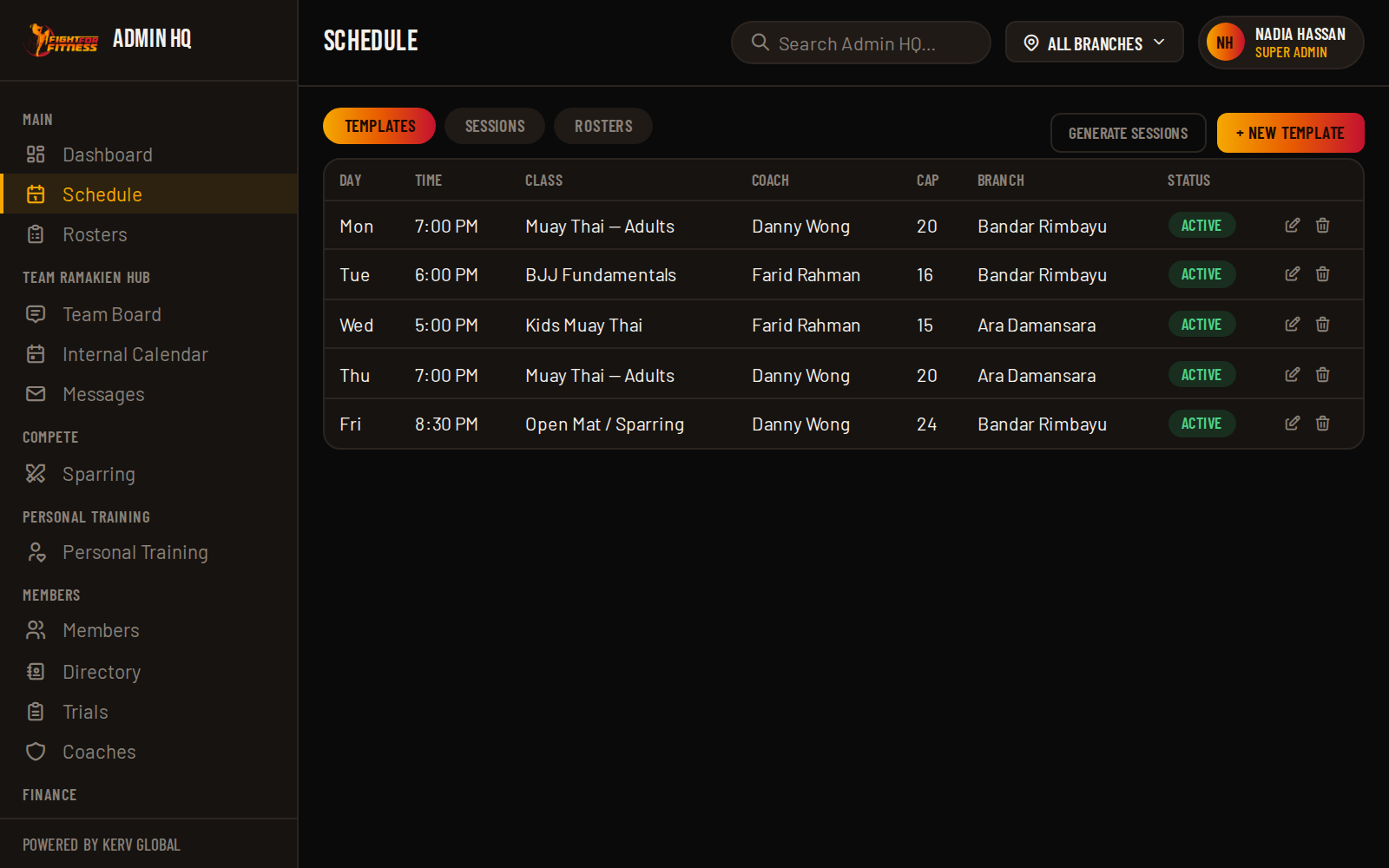
Class templates

A template is the recurring shape of a class: day of week, time, coach, capacity. Add, edit, delete, or toggle one active/inactive.

Branch Admin: the branch field is locked to your own branch, and you'll only ever see your own branch's coaches in the dropdown.
Class templates in Admin Schedule
Screenshot coming soonscreenshots/a03-schedule-templates.png
02

Generating sessions from a template

Templates don't put anything on the calendar by themselves. Use Generate to turn a template into actual bookable sessions across a date range.

03

Editing or cancelling a single session

Need to move or cancel just one occurrence without touching the whole template (a coach is sick, a public holiday)? Update or delete that one session directly.

04

One-off classes

For a class that was never meant to repeat (a special seminar, a guest coach session), add it directly without creating a template for it first.

Rosters & Attendance5 things you can do
05

Marking a roster

Open any session's roster to see everyone booked in. Mark each person present or absent, or undo an absent mark if it was a mistake.

06

Adding a walk-in on the spot

Someone shows up without a prior booking? Add them straight into the roster, as a regular member, a trial, or against a class pass, without sending them back to book online first.

07

Attendance requests

When a member disputes how they were marked, it shows up as a pending request here. Approve it to correct their record, or reject it to leave the original mark standing.

4
Level 4 of 11 ~3 min read

Level 4: Team Ramakien Hub

Internal coordination for FFF staff, admins and coaches only. Members never see any of this.

01

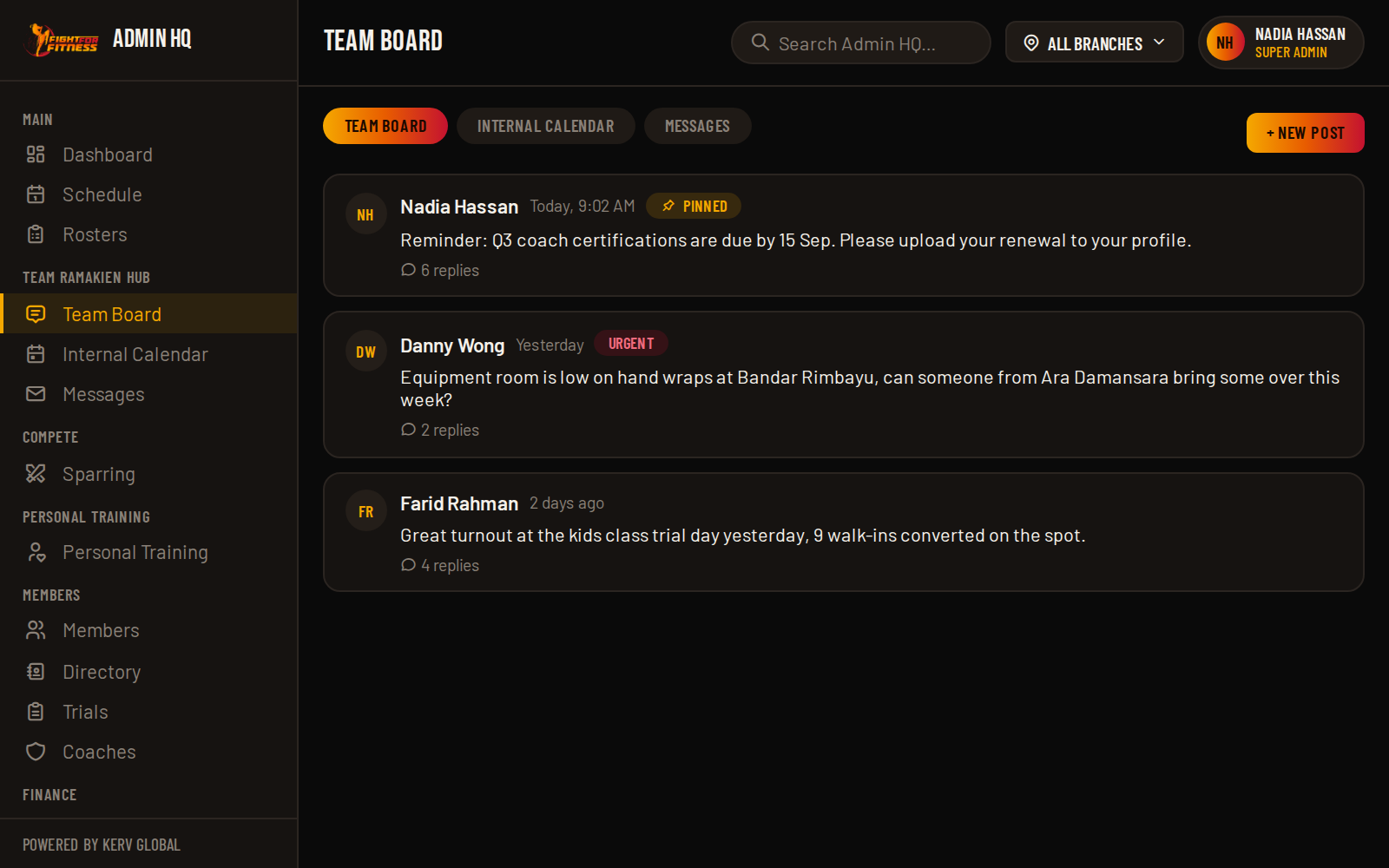
Team Board

A discussion board for staff notices. Post, reply, pin a post to the top, flag one as Urgent so it stays visible instead of collapsing, or edit/delete your own posts.

Team Board discussion in Team Ramakien Hub
Screenshot coming soonscreenshots/a04-teamboard.png
02

Internal Calendar

Staff meetings, seminars, and internal FFF events, completely separate from the member-facing class Schedule. Create an event, RSVP, pin or flag it Urgent, and cancel (with a reason) or uncancel if plans change.

03

Messages & @mentions

Direct one-on-one messages between staff, for anything that's really a private conversation rather than a Board post. @mention anyone in a post, reply, or message and they get notified directly.

04

Who can start something new

Any staff member (admin or coach) can read everything, reply, and RSVP. Starting a brand-new Board post or Calendar event is restricted to Admins (Super or Branch), which keeps the Board and Calendar signal, not noise, while coaches can still fully participate in the conversation.

💡
Pro tip

Look for a badge on the sidebar next to Team Board, Internal Calendar, and Messages. It clears the moment you actually open that item, so it only ever shows genuinely unseen activity.

5
Level 5 of 11 ~4 min read

Level 5: Compete & Personal Training

Overseeing member-to-member sparring and the Personal Training side-business, both of which run on their own approval flows.

Sparring Challenges3 things you can do
01

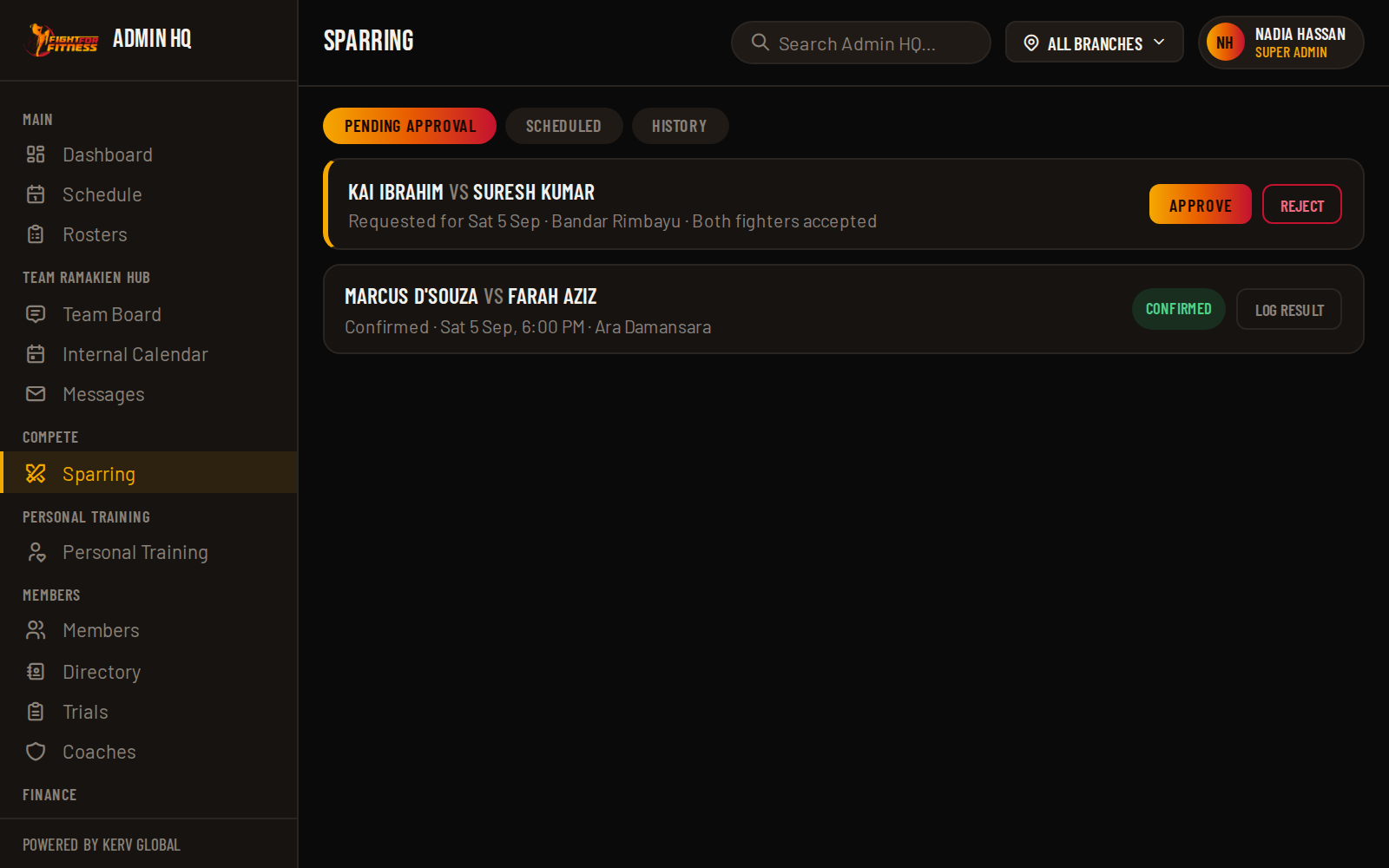
Approve a challenge

Members challenge each other to a sparring match through the app. Nothing gets scheduled until an admin approves it.

Approving a sparring challenge
Screenshot coming soonscreenshots/a05-compete-challenges.png
02

Log a result

After the match happens, log the outcome so it's on record.

03

Cancel a challenge

Called off before it happens? Cancel it so it doesn't sit there as a pending item.

Personal Training4 things you can do
04

Scheduling & cancelling PT sessions

Schedule a one-on-one or small-group PT session between a member and a coach, or cancel a booking that's already on the calendar.

05

Managing participants

Add or remove a participant from a session, and handle "extra pax" (someone tagging along beyond the original booking (e.g. a friend joining a small-group slot).

06

Credit adjustments

Manually add or void a PT credit adjustment on a member's account, for a goodwill top-up, a correction, or reversing a mistaken deduction.

07

Toggling a coach's PT eligibility

Turn a coach's ability to take PT bookings (and PT credit handling) on or off, without touching their regular class-coaching status.

6
Level 6 of 11 ~9 min read

Level 6: Members & Family Accounts

The biggest single page in Admin HQ. It's grouped into six collapsible sections below; expand only what you need.

Adding Members2 ways in
01

Add a single member

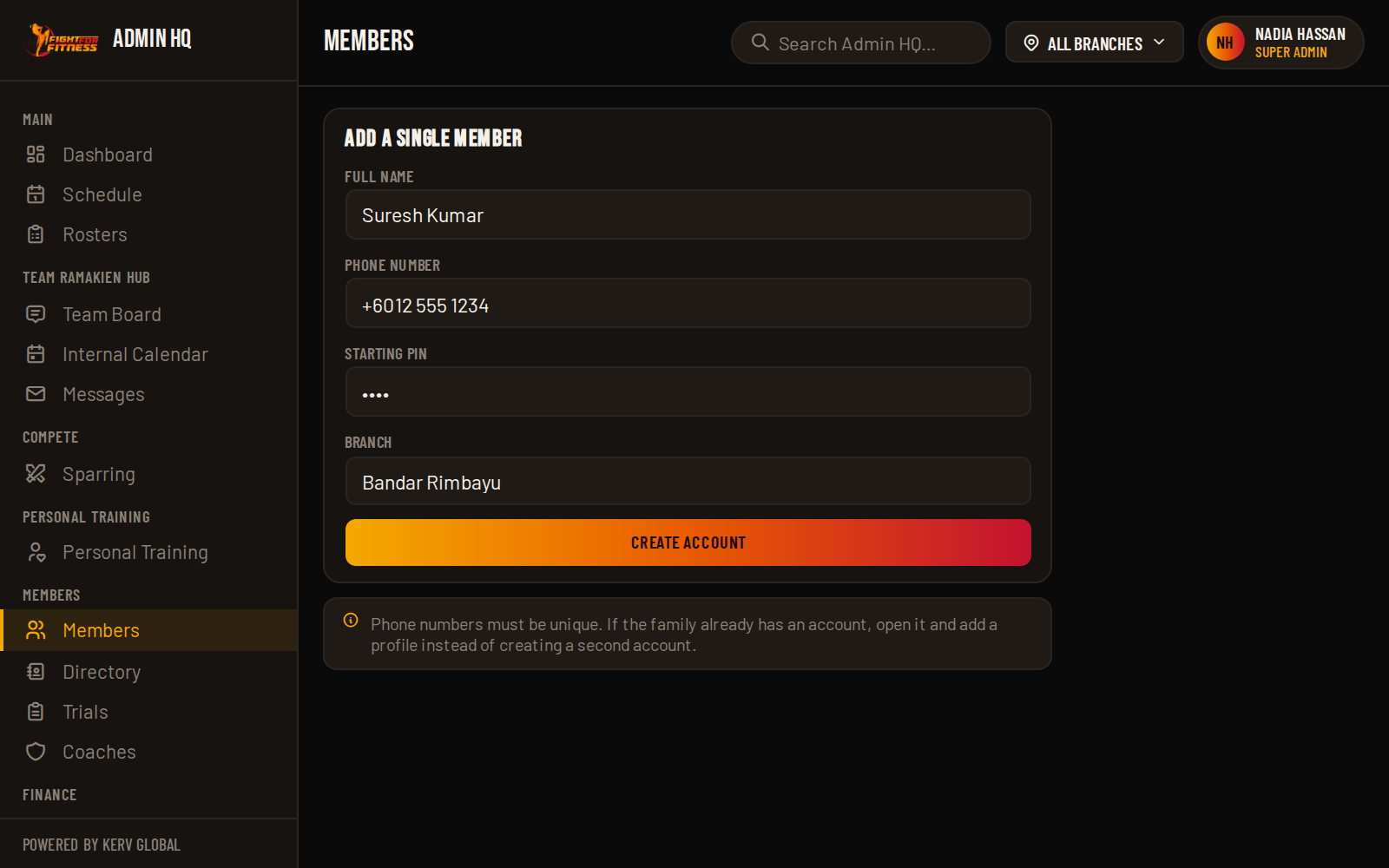
Enter name, phone number and a starting PIN to create a login. One profile is created automatically under the account, named after them. Add more profiles afterwards for family members sharing the login.

Phone numbers must be unique. If the family already has an account, open that account and add a profile under it instead. Don't create a second account for the same phone number.
Add a single member form
Screenshot coming soonscreenshots/a06-members-add.png
02

Bulk import

Paste a list, one login per line, Name, Phone or Name, Phone, PIN, to add a whole existing member list at once. Leave the PIN out and one is generated for you to hand out.

Add a | after the account details to create shared family logins in bulk too: Edward, 012-345 6789, 1234 | Eden creates one login with two profiles, Edward and Eden.

Editing a Member's Account6 things you can change
03

Name, photo & status

Update the account holder's name, upload or remove a profile photo, and suspend or reactivate the whole account (blocks login and booking without deleting anything).

04

Reset a member's PIN

Forgotten PIN? Type a new one and save. Takes effect immediately, no need to involve the member's phone.

05

Update the login phone number

Changed numbers? Update the phone number a member actually logs in with, right from their account panel. A confirmation prompt double-checks before saving, since it changes what the member has to type in at login; their PIN is untouched.

Same duplicate-number protection as adding a member: if the new number already belongs to another account, the change is blocked and you're pointed to the family/shared-login flow instead.
06

Transferring a member between branches Super Admin only

Move an account from one branch to another.

Super Admin only. Branch Admins can't move a member out of, or into, their branch. This is the one member-editing action Branch Admin genuinely can't do.
Family Profilesone login, several people
07

How family accounts work

One phone number + PIN is the login (the "member"). Each person training under it (a parent, their kids) is a separate "profile" underneath, each with their own attendance history, package and payment dates. Add a profile, rename one, set whether it's Adults-only / Kids-only / Both, or deactivate/delete a profile that's no longer training (deleting is blocked if that profile has any booking history, same rule as deleting a whole member).

Payments & Classes Per Profile3 things you can set
08

Membership dates & classes remaining

Set a profile's last payment date, next due date, and (for class-pass packages) how many classes are left; each profile has its own, so one family member renewing doesn't touch another's dates.

09

Referral discounts

Apply a referral discount at the account level or to one specific profile: 5%, 10% or 15% off, or none.

Freezes & Private Notices2 things you can do
10

Membership freezes

Approve or reject a freeze request a member submitted, or freeze/unfreeze a profile directly yourself.

11

Private notices

Send a message visible only to that one member, different from the public Announcement board on the Dashboard (Level 2).

Deleting vs. Suspendingread this before you delete anything
12

The rule that matters most on this page

You can only permanently delete a member (or a single profile) if none of their profiles have any booking history, not even a cancelled booking. The moment there's history on record, delete is blocked outright.

💡
Pro tip

This is deliberate, not a bug. If a member has ever attended or booked anything, Suspend is what you want. It blocks login and booking immediately, without destroying any record of them. Reserve Delete for true duplicate or test accounts with nothing attached.

7
Level 7 of 11 ~5 min read

Level 7: Front Desk (Directory, Trials & Coaches)

The three tools you reach for at the front counter: who's this person, is this trial converting, and how are our coaches doing.

01

Directory

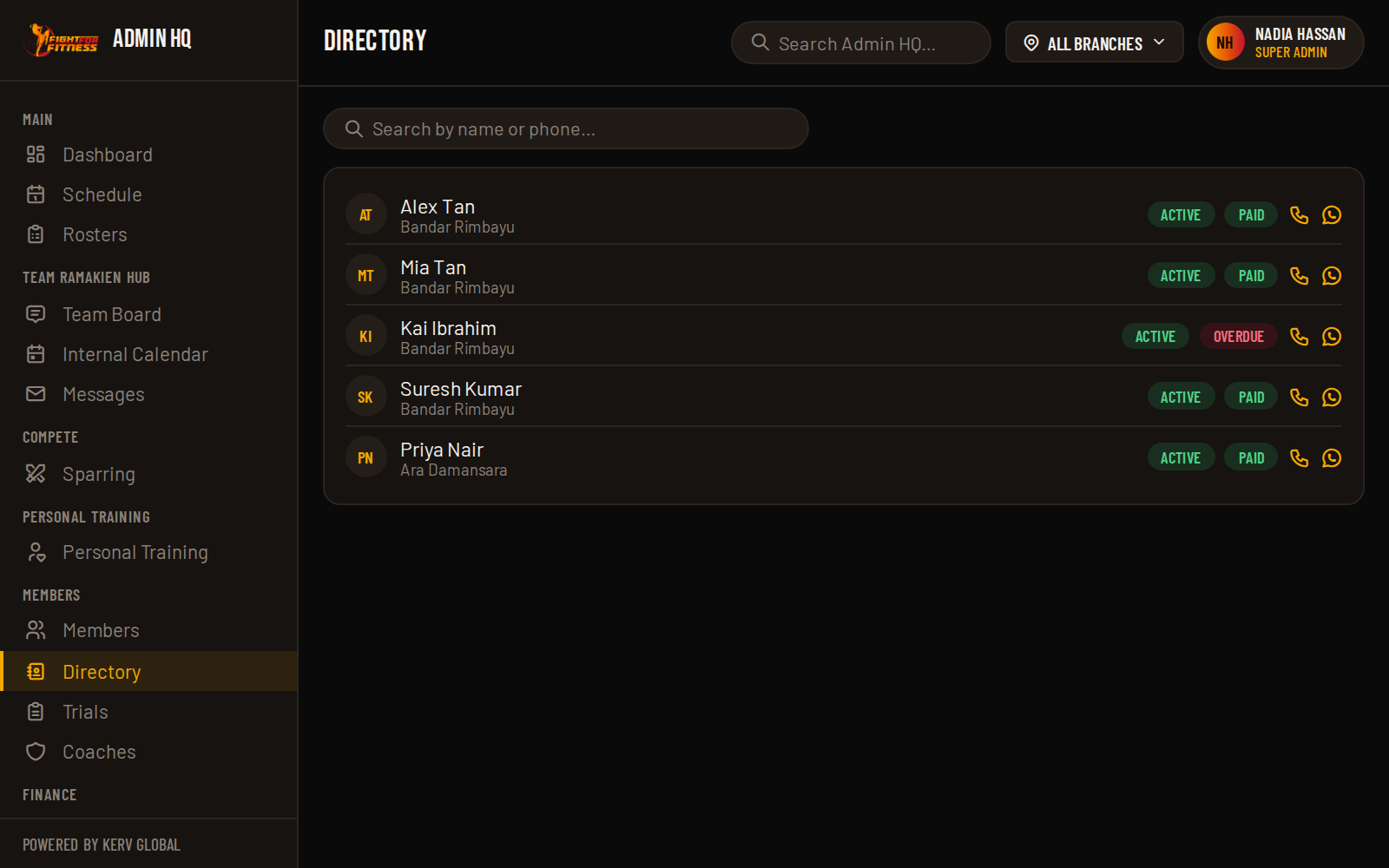
A fast, search-first lookup: find a member by name, confirm they're cleared to train (active status, no overdue payment), and reach them in one tap. Read-only: it's built for speed at the front desk, not for editing.

Front Desk Directory
Screenshot coming soonscreenshots/a07-directory.png
02

Trials: register through convert

Every trial registration moves through this page: mark them Attended or a No-show after their session, add remarks, and either let it expire or mark it Lost if they don't continue. When they're ready to join for real, Convert turns the trial into a paying member, either as a brand-new account, or as a new profile added under an existing member's account (for a family that's already signed up).

Branch Admins can only convert trials that belong to their own branch; attempting one from another branch is blocked outright.
03

Coaches

Attendance and PT oversight for every coach. Branch Admins only see coaches assigned to their own branch (via each coach's branch assignments); Super Admin sees everyone.

8
Level 8 of 11 ~7 min read

Level 8: Finance

Pricing, payments, receipts and the shop: four pages, four collapsible groups below.

Membership Pricing2 pages, 1 source of truth
01

Price List (Membership)

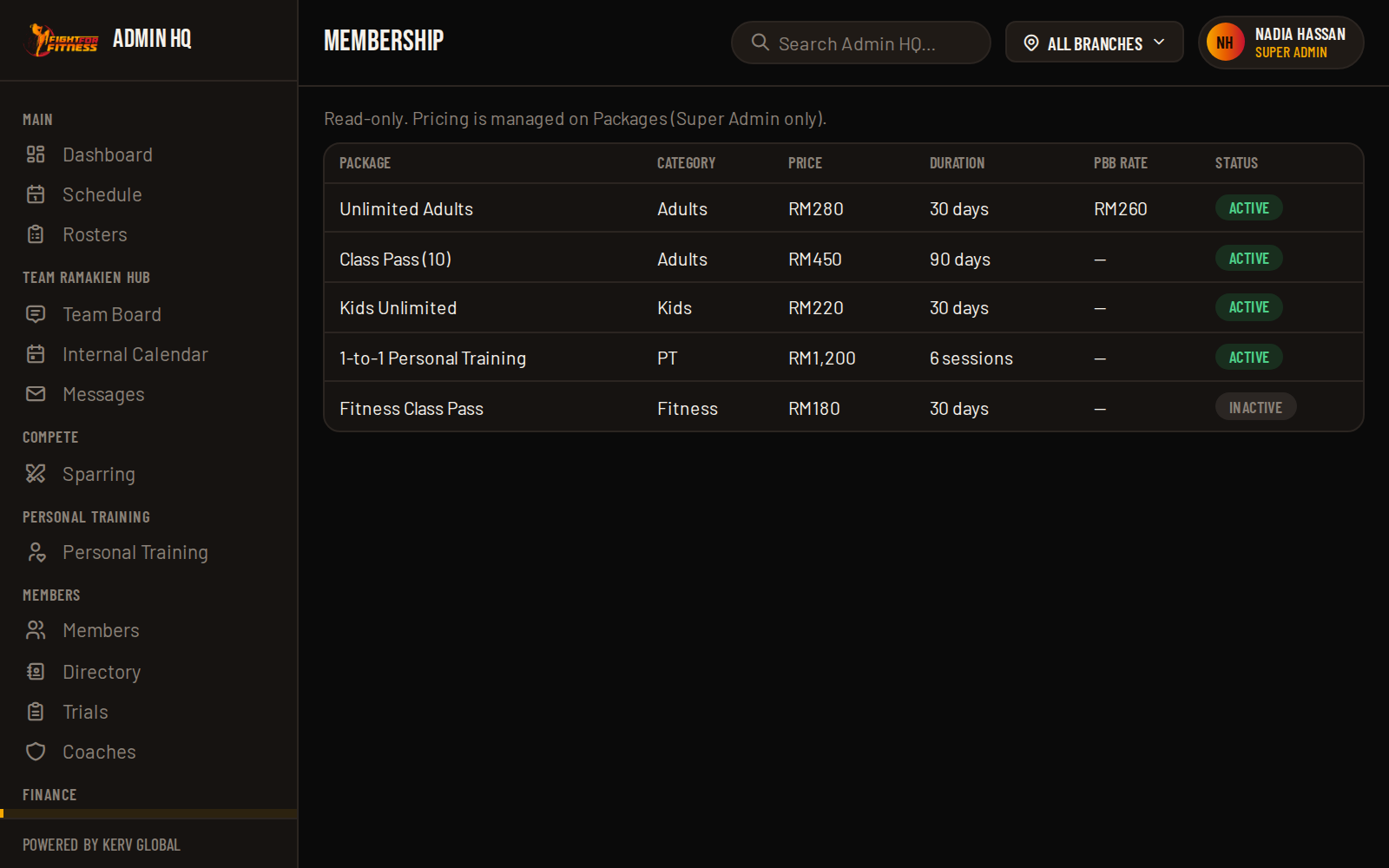
A read-only view of every package on offer: Kids, Adults, Fitness Classes, and the Terms & Conditions members see. There's nothing to edit here directly.

Membership Price List
Screenshot coming soonscreenshots/a08-finance-pricelist.png
02

Packages Super Admin only

This is where pricing actually lives. Add or edit a package, toggle it active, and sync changes so the Price List above reflects them. The duration_days set here is what actually calculates every member's Last Payment / Payment Due dates; it's not just display copy.

PaymentsQR settings + approvals
03

Payment settings (QR codes)

Upload and manage the bank-transfer QR code(s) members scan to pay, per branch.

04

Approving or rejecting a payment

When a member uploads proof of a bank transfer, it sits as a pending submission until you approve it (which activates their membership) or reject it (asking them to resubmit).

Receiptsview, void & create manually
05

Browsing & voiding receipts

Filter and view every receipt on record. If a receipt included a Starter Pack shop item, you can void that specific fulfillment (with a reason); it restores the stock that was deducted, without touching the rest of the receipt.

06

Create Manual Receipt

For cash payments, or any payment that didn't go through the member's own upload flow. As admin you can select any member from any branch, set the actual payment date (which is what backdates their membership start), and optionally attach proof, or skip the screenshot requirement entirely since you're verifying it yourself. Two steps: pick the member, then set the package and payment details per profile.

Shopproducts, orders & the master catalog
07

Shop Management

Add or edit a product, update an order's status, delete or deactivate a product, run a bulk discount, and pull an inventory report with a low-/out-of-stock breakdown, all scoped to your own branch's listings if you're a Branch Admin.

08

Shop Catalog Super Admin only

The single source of truth for a product's identity (name, brand, category, photo, description, price and discount), shared across every branch. Editing an item here pushes those fields out to every branch listing linked to it; stock and per-branch on/off stay on Shop Management. Branch Admins don't get this page at all.

9
Level 9 of 11 ~4 min read

Level 9: Manage (Inbox & Analytics)

Website leads coming in, and the numbers telling you how the gym is actually doing.

01

Contact Inbox

Every submission from the FFF website's contact form lands here. Mark one read, archive or unarchive it, delete it outright, track a follow-up, or jot down remarks, and reply straight from the page via pre-filled WhatsApp or email buttons, so you're not copy-pasting a phone number by hand.

02

Analytics

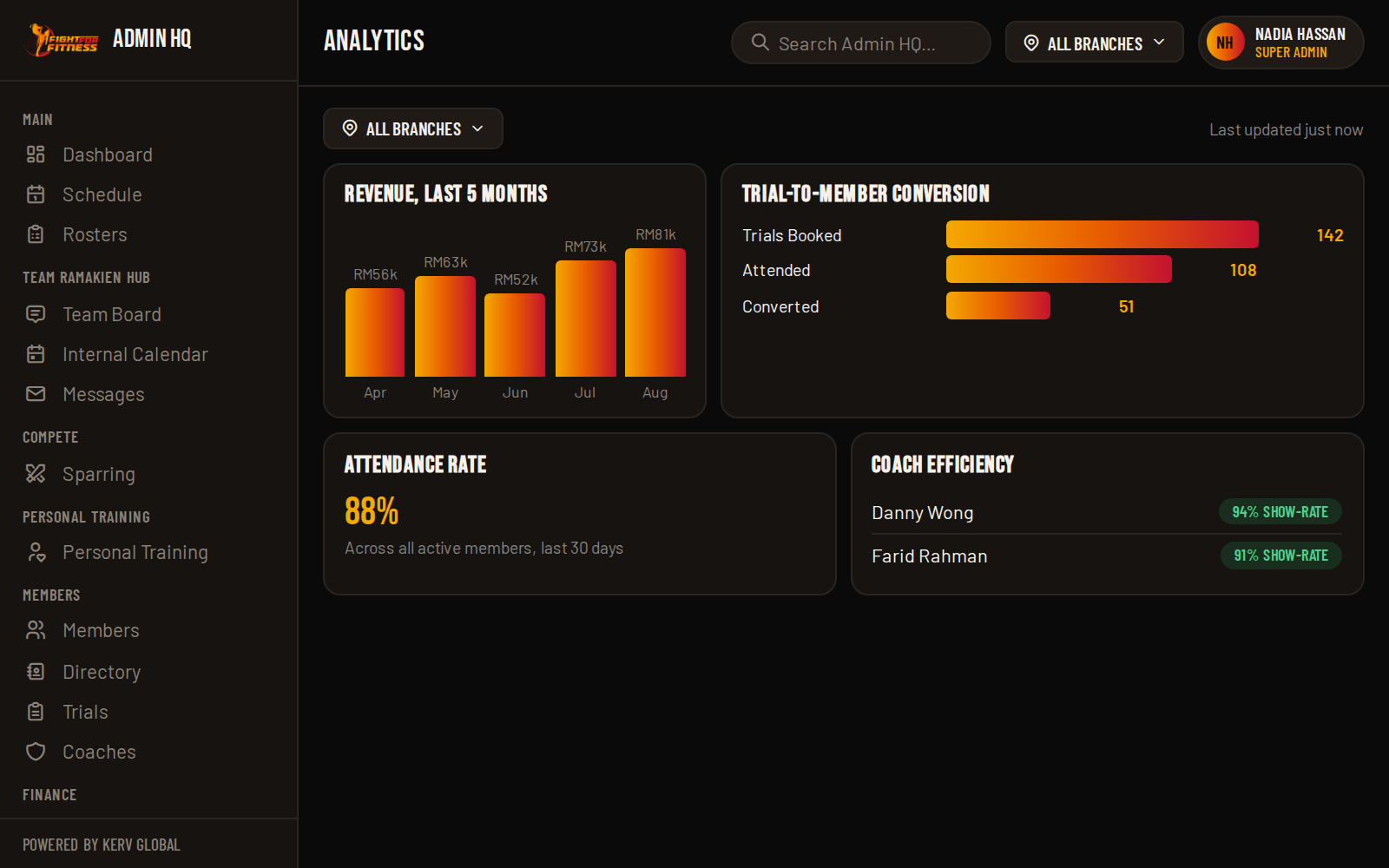
The reporting dashboard: revenue, attendance, coach efficiency, student stats, and the trial-to-member conversion funnel, with a branch filter. Branch Admins see their own branch's numbers only; Super Admin can view any branch, or all of them together.

Analytics reporting dashboard
Screenshot coming soonscreenshots/a09-analytics.png
10
Level 10 of 11 Super Admin only, throughout ~5 min read

Level 10: Super Admin Toolkit

Three pages that don't appear in a Branch Admin's sidebar at all, not greyed out, just not there. This is the level to hand off to whoever holds the keys to the whole gym.

01

Legal Content

Edits the actual text of the Consent & Waiver and the Rules & Regulations that every member has to read and accept, the one-time acceptance mentioned when a new member is onboarded. Save can optionally bump the document's version number, which forces every member to be prompted to re-read and re-accept it again, even if they already accepted an older version.

💡
Pro tip

Every save keeps a timestamped backup of the previous version automatically, before the new text goes live, so an edit here is never a one-way door.

02

Branches

Add a new branch, edit its details, or toggle one active/inactive. This is the master list every other branch-scoping feature in this guide (Branch Admin's filters, the branch dropdowns) ultimately reads from.

03

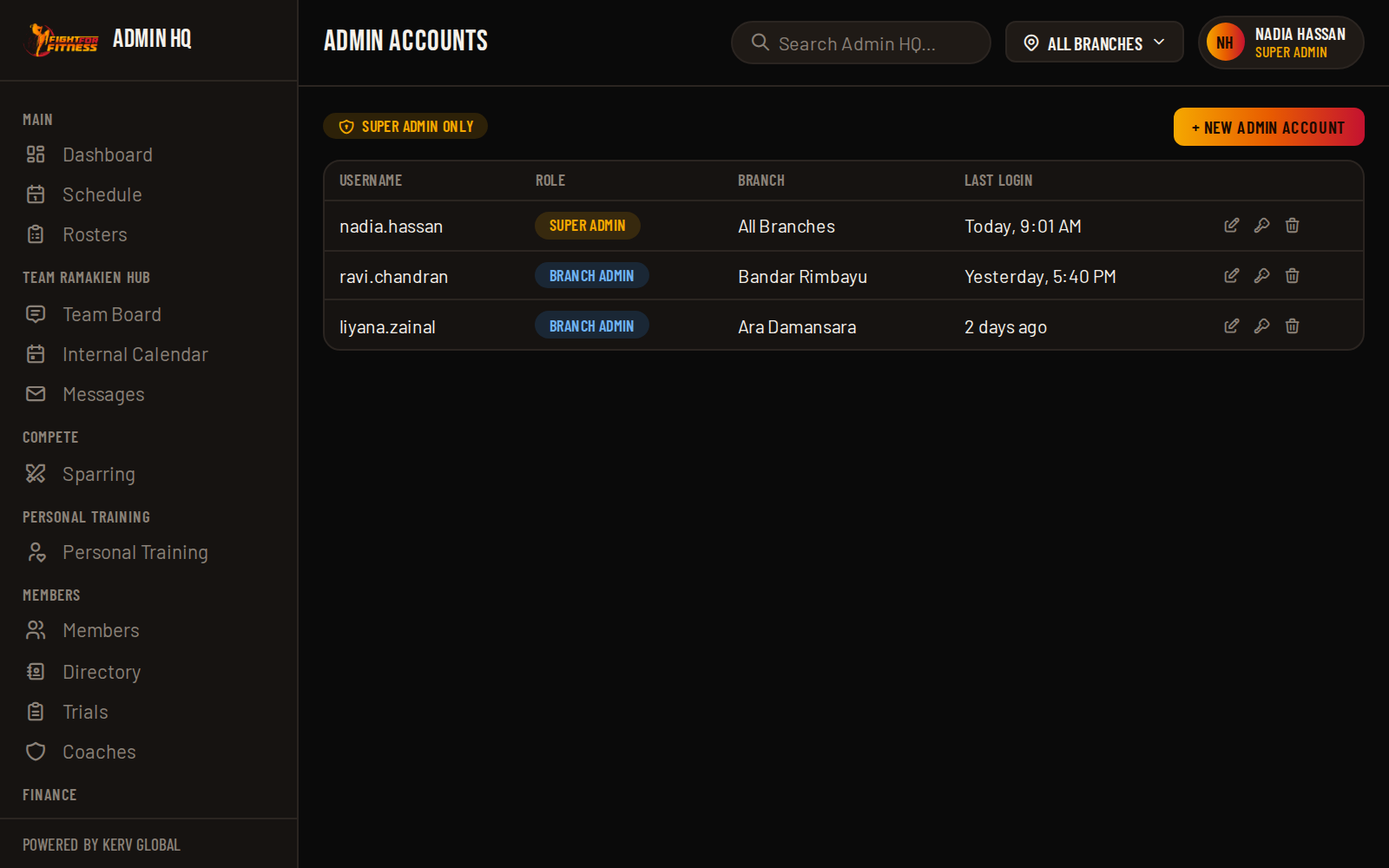
Admin Accounts

Create new admin logins: choosing Super Admin or Branch Admin (and which branch, for a Branch Admin), edit an existing admin's details, reset another admin's password, or delete an account. This is the only place any admin's username and password can be set or changed; there's no self-service "forgot password" for admins.

Admin Accounts management
Screenshot coming soonscreenshots/a10-adminaccounts.png
11
Level 11 of 11 ~4 min read

Level 11: FAQ & Good to Know

Real gotchas, pulled from the actual rules built into the app, not generic filler.

Delete only works if none of that member's profiles have any booking history, not even a cancelled one. The instant there's history, delete is blocked. Use Suspend instead; it disables login and booking without erasing their record. See Level 6.

Yes. Changing the phone number only changes what they type into the "phone" field at login; their PIN is completely unaffected. Just make sure to tell them the new number, since that's now what they need to log in with.

Every login phone number has to be unique across the whole system. If it's already blocked, that number belongs to another account. If this is actually the same family, add them as a profile under that existing account instead of trying to move the number.

Branch transfers are Super Admin only. If you're a Branch Admin and a member genuinely needs to move branches, ask a Super Admin to make the change.

On the Packages page (Super Admin only, Level 8), that's the real source of truth, including how many days a package's validity lasts. The public-facing Price List page just mirrors it; editing there isn't possible because there's nothing to edit, it's read-only.

No, that's by design. Packages, Shop Catalog, Legal Content, Branches and Admin Accounts only appear for Super Admin. Branch Admin doesn't get a greyed-out link, the item simply isn't rendered. Use the All / Super Admin / Branch Admin toggle at the top of this guide to preview exactly what each role sees.

You can't self-serve it. There's no "forgot password" link on the admin login page. Ask a Super Admin to reset it for you from Admin Accounts (Level 10). If you're the only Super Admin and you're locked out, that needs a direct database fix, not something inside the app.

15 minutes of no activity signs you out automatically, the same rule that applies to Member and Coach logins. It's a security measure for shared front-desk devices, not a glitch.

Yes, that's the family-profile design. One phone + PIN is the login; each family member training under it is a separate profile with their own attendance and payment history. See Level 6.

Checked against the real app. Every page, action name, and Super-Admin-only gate mentioned here was read directly out of the live admin/*.php files, not guessed from what an admin panel "usually" has. If the app changes, this guide should be re-verified against the code rather than hand-edited from memory.