FIGHTHUB Coach Guide
/
↑↓ to navigateEnter to jump
0 / 1100 XP
Fight For Fitness Coach Guide

Your Coach HQ Playbook

One login, your classes, your students. Everything Coach HQ can do, explained the way a head coach would, in eleven levels. Work through them once and you'll never be lost in the app again.

11 levels to master 9 coach pages: Dashboard to Settings 15 min auto-logout for security 0 guesswork — verified against the live code
1Level 1Getting Started 2Level 2Your Schedule 3Level 3Attendance 4Level 4Requests 5Level 5Monthly Report 6Level 6Good to Know 7Level 7Personal Training 8Level 8Sparring 9Level 9Team Ramakien Hub 10Level 10My Profile 11Level 11Settings

New coach account? Tick these off before your first class and you're good to go.

  • Log in with your coach phone number + PIN
  • Check today's classes on Coach HQ
  • Open a class and see its roster
  • Check for any pending attendance requests
  • Bookmark the Monthly Report page
  • Add FightHub Coach to your phone's home screen
0 / 6 done
1
Level 1 of 6 ~2 min read

Level 1: Getting Started

Everything here happens once, right when you're set up as a coach. Get through it and you're ready for your first session.

01

Welcome to Coach HQ

Coach HQ is FightHub's coach portal, a separate, cut-down view of the same system members use. It's built around exactly two things: knowing what's on your schedule, and keeping attendance and student assessments up to date. No public sign-up, no self-service account creation, your account is set up for you by an admin.
02

Getting Your Login

Coach accounts are created by the admin team, the same way member accounts are. When you're brought on as a coach, staff set you up with your own phone number and PIN, and assign you to the branch (or branches) you'll be coaching at.

Your coach login is separate from any member login you might also have. They use different phone/PIN pairs and different sign-in pages.
03

Logging In

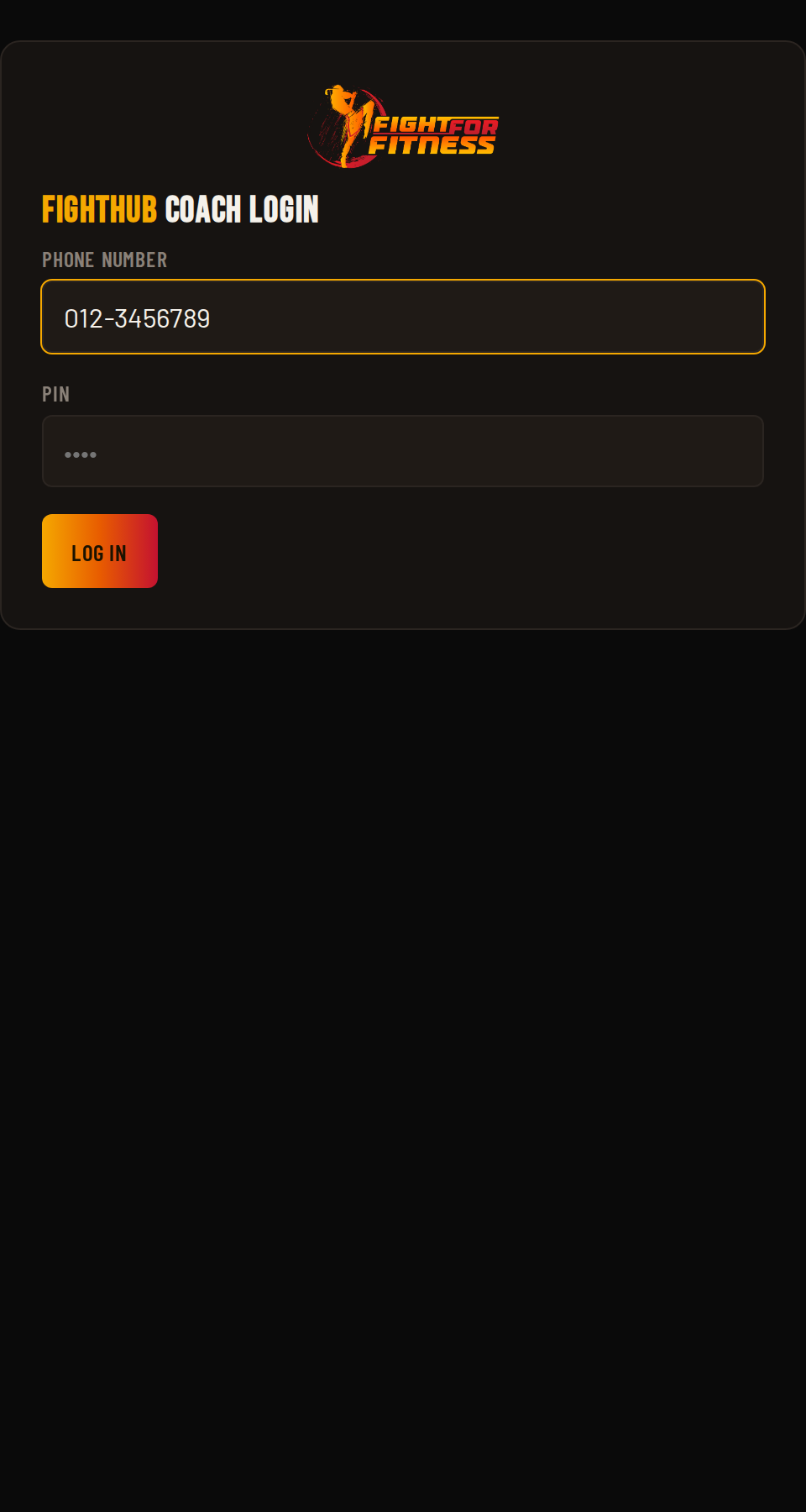
Head to the FightHub Coach login page and sign in with your phone number and PIN.

  1. Go to the coach login page.
  2. Enter your phone number, e.g. +60123456789.
  3. Enter your PIN.
  4. Tap Log in.
Like the member side, you're automatically logged out after 15 minutes of inactivity. Just log back in with the same phone and PIN.
FightHub Coach login screen
Screenshot coming soonscreenshots/c01-login.png
04

Your Branch Assignment

You'll only ever see data for the branch (or branches) an admin has assigned you to. If you coach at more than one branch, Coach HQ combines everything from all of them, classes, Personal Training, Sparring Challenges, and the Team Ramakien Hub, into one view, no switching between branches required.

If a branch is missing from your view, that's an assignment issue, ask the admin team to add it.
05

Finding Your Way Around

Coach HQ keeps things simple: a sidebar (or bottom bar on mobile) with just two destinations, Dashboard and Monthly Report. A small badge appears on either one whenever something needs your attention, a pending attendance request or an unwritten assessment.

Dashboard (Coach HQ) Monthly Report Theme toggle Log out

On mobile, the bottom bar shows Home and Report directly, with a "More" tray for anything else the team adds later.

2
Level 2 of 6 ~3 min read

Level 2: Your Schedule

Coach HQ's Dashboard is where every session starts. Here's what's on it.

01

Coach HQ at a Glance

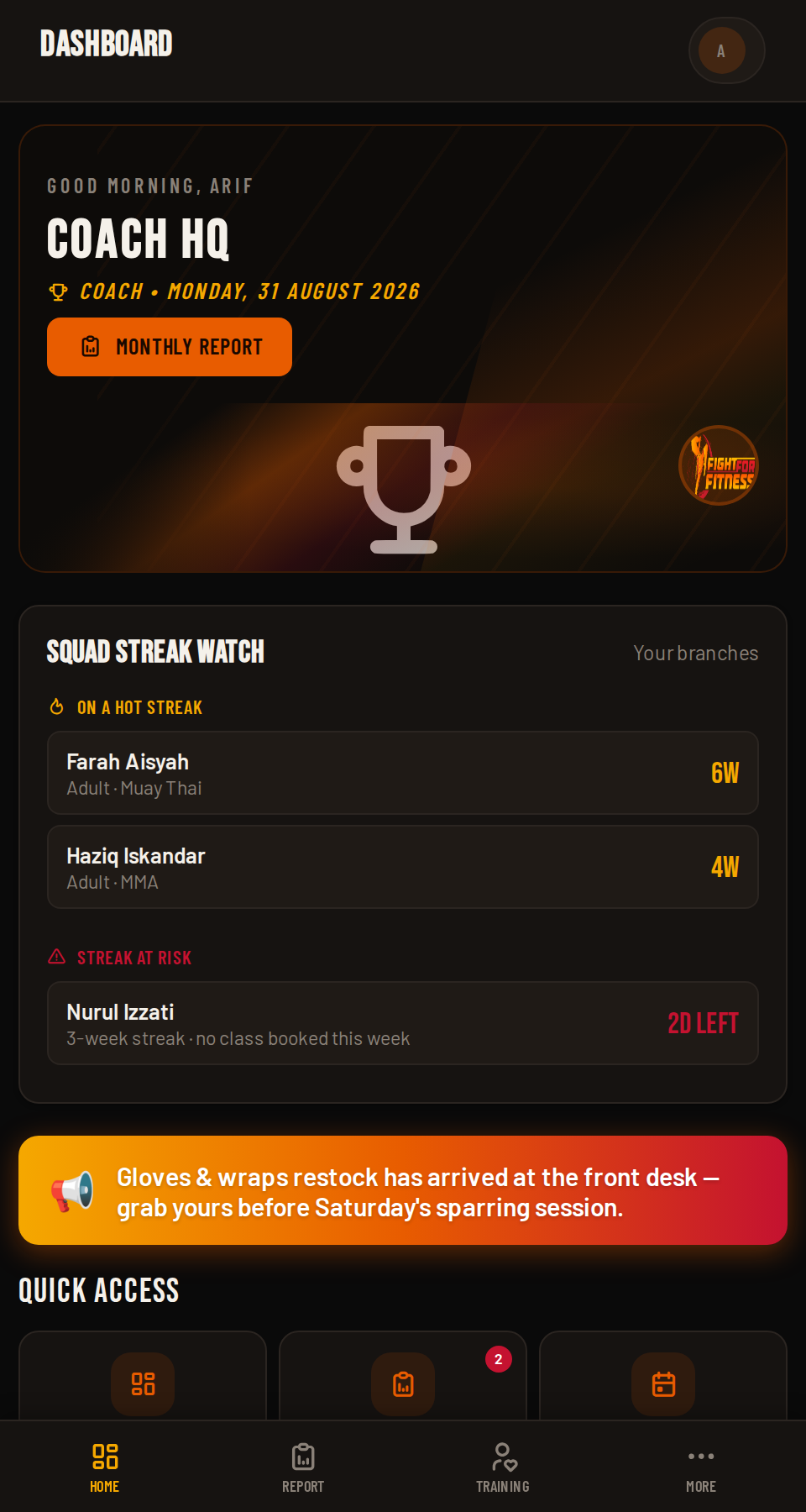
The Dashboard greets you by name (good morning / afternoon / evening) and gives you four Quick Access tiles: Dashboard, Monthly Report, Today's Classes (jumps straight to today's roster), and Assessments (jumps to your pending assessments, with a badge if any are due). Below that sit three summary cards: This Week (classes + total students), Year to Date (classes taught, attendance rate, assessments written), and Announcements from the admin team, plus a row of coaching milestones for the year.

Coach HQ dashboard overview
Screenshot coming soonscreenshots/c02-dashboard.png
02

Student Insights

Below the milestones, the Dashboard quietly flags three things worth your attention this month: your Most Consistent students, anyone whose Attendance Dropped noticeably versus last month, and any New This Month faces. It's a heads-up, not a task, use it to decide who might need a check-in.

03

The Monthly Calendar

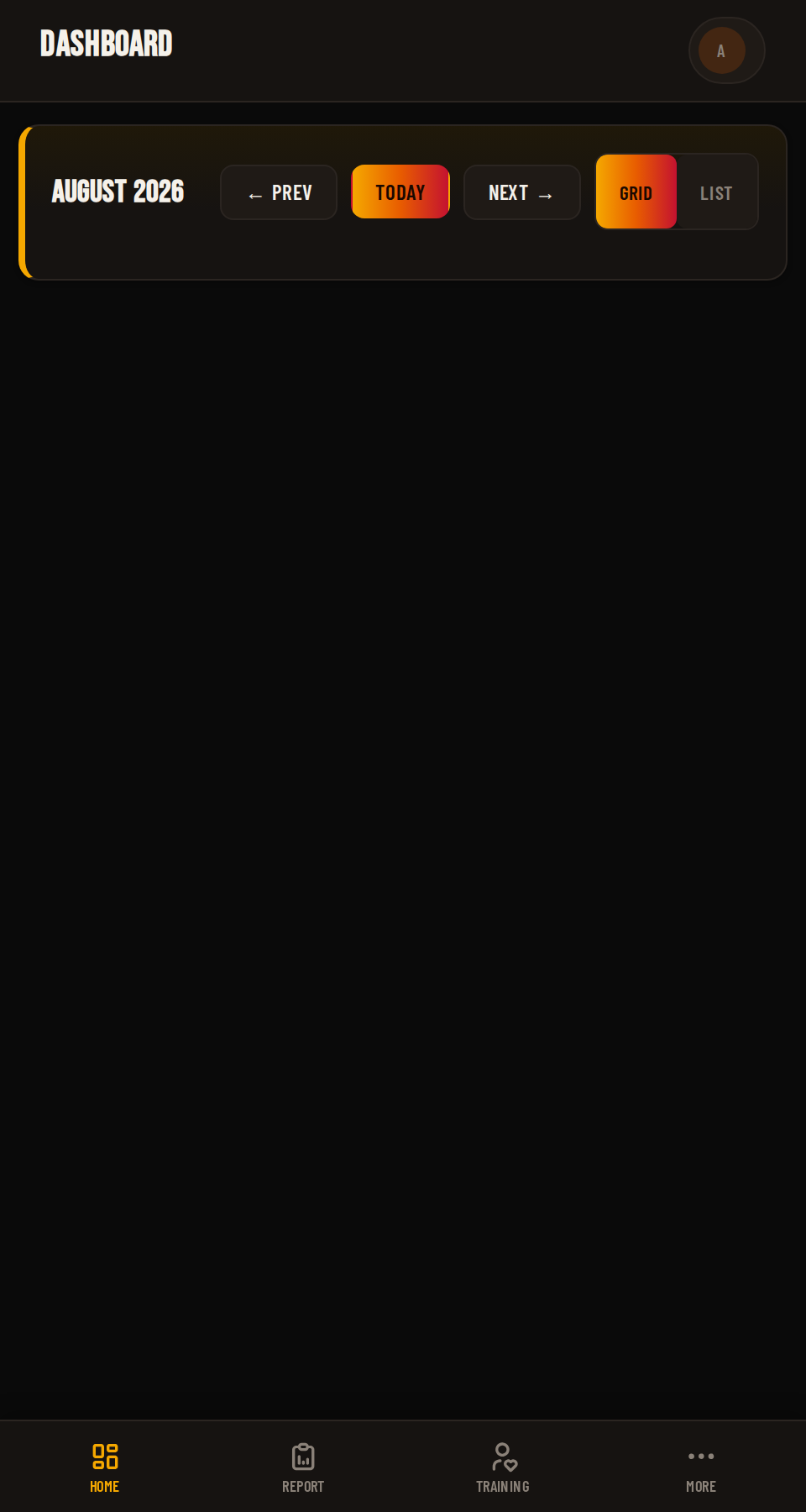
A calendar shows every date you have a class this month, with a student-count badge on each. Switch between Grid and List view with the toggle above it, list view is the default on phones. Tap any date to jump to that day's classes.

Only your own classes show here. Co-teaching a class with another coach still counts for both of you.
Coach HQ monthly calendar
Screenshot coming soonscreenshots/c03-calendar.png
04

Jumping to a Day

Below the calendar sits the day detail view, your classes for whichever date is selected. Use Prev day / Today / Next day, or pick an exact date, to move around. If you have nothing on that day, it clearly says so instead of showing an empty table.

05

Announcements

Anything the admin team posts for coaches at your branch shows as a banner at the top of your Dashboard, and in the Announcements summary card. These are read-only on the coach side.

06

Currently Frozen Students

If any student at your branch has an approved membership freeze right now, they show up in a read-only "Currently frozen" card, so a student not showing up makes sense at a glance. Freeze requests themselves are handled by admin, not from Coach HQ.

3
Level 3 of 6 ~3 min read

Level 3: Marking Attendance

The single most important thing you'll do in Coach HQ, and it's mostly done for you.

01

Attendance Is Automatic

Every booked student is automatically marked Present the moment their class ends. You don't need to check anyone in. Your only job is to flag the students who didn't show up.

💡
Verified fact

This is the same rule the Member Guide's FAQ states to members: "You're automatically marked as attended once the class ends, unless a coach marks you absent." It's pulled straight from Coach HQ's own auto-attendance logic.

02

Opening a Class Roster

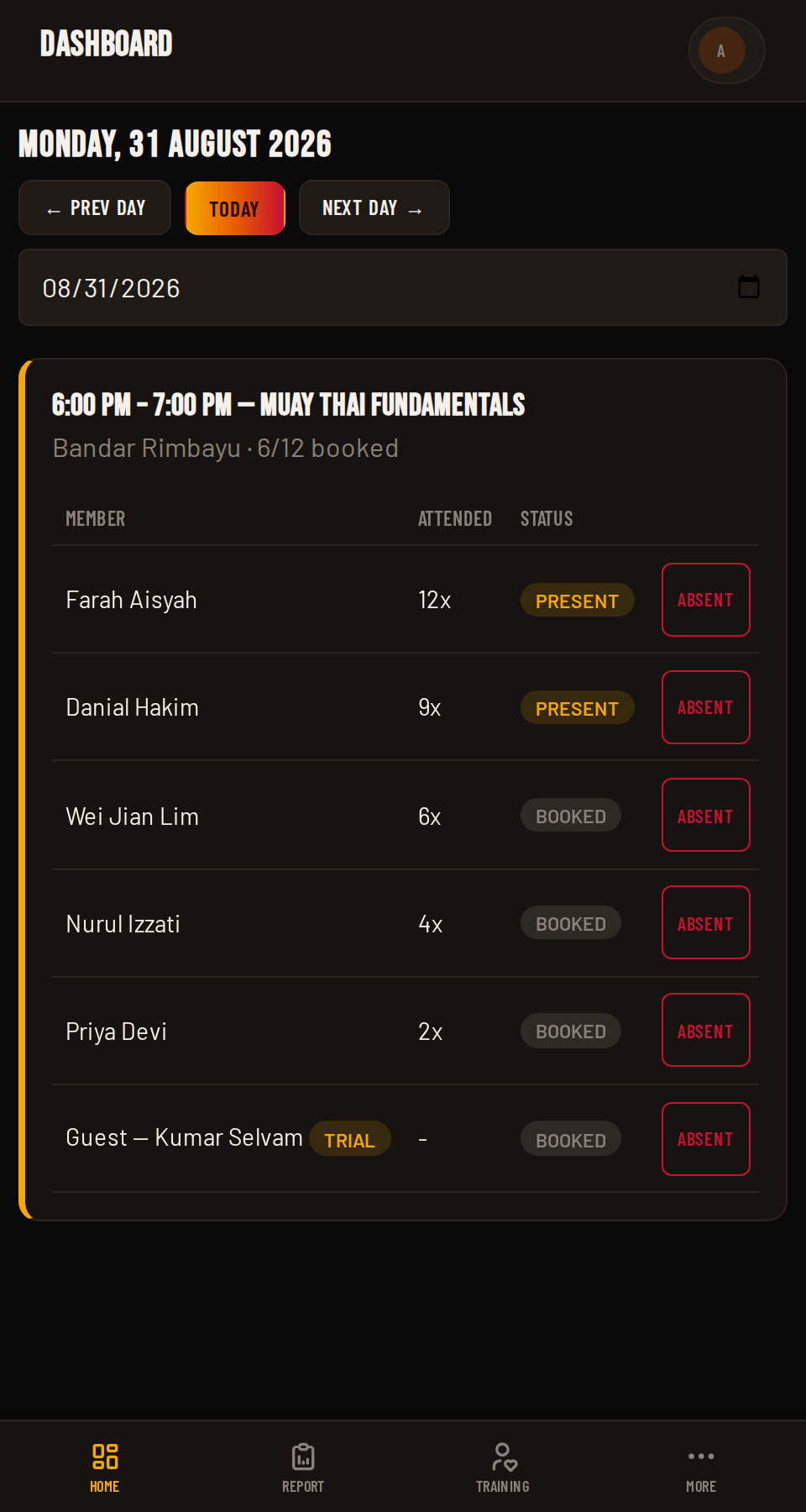
On the day detail view, each class you're teaching that day appears as its own card: time, class name, branch, how many are booked out of capacity, any co-teaching coach, and a roster table below it.

  1. From the Dashboard, tap a date on the calendar (or use "Today's Classes").
  2. Scroll to the class you want.
  3. The roster table lists every member and guest booked in.
Coach HQ class roster
Screenshot coming soonscreenshots/c04-roster.png
03

Marking Someone Absent

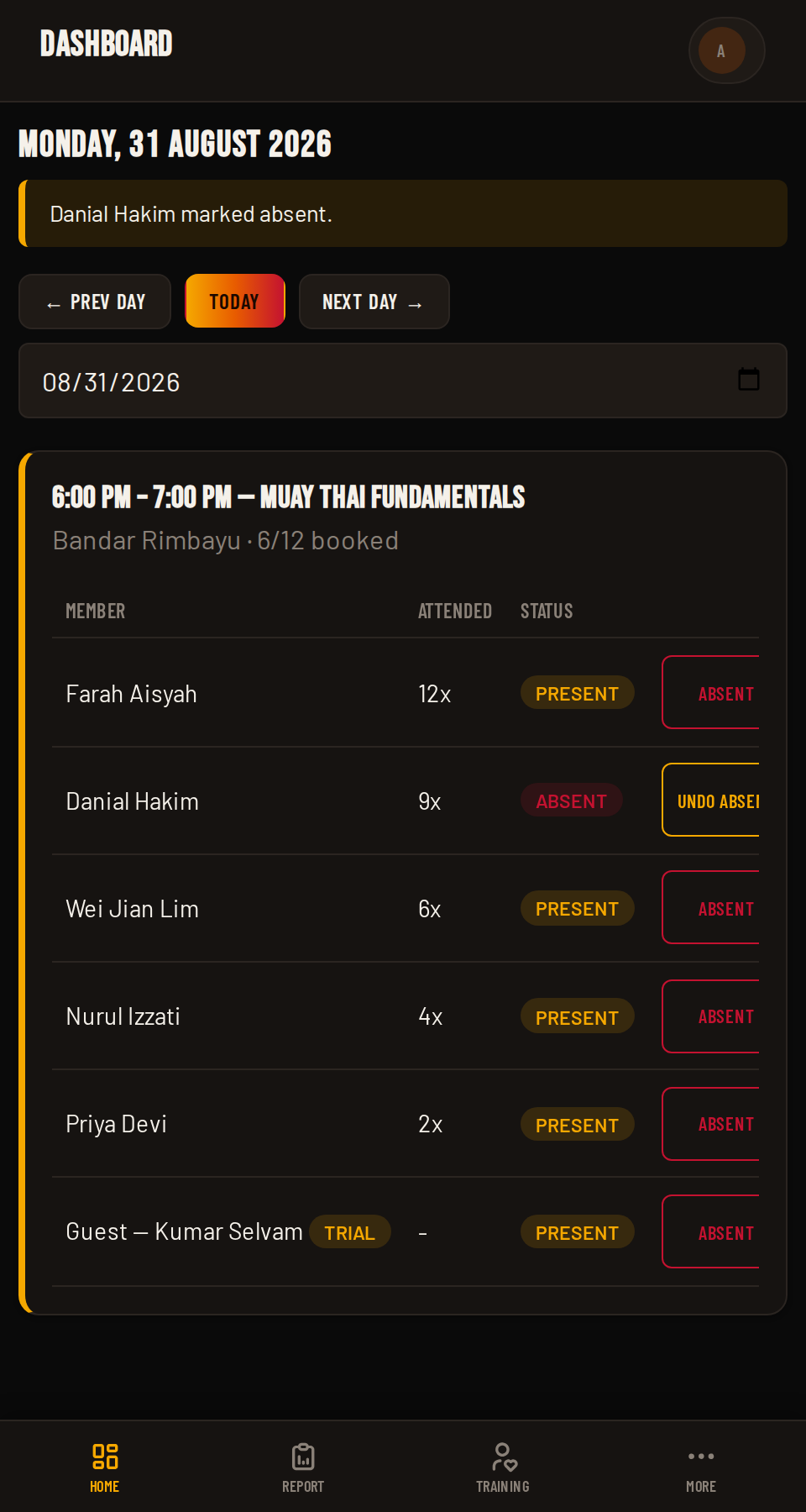
Each roster row shows a status: Booked (class hasn't ended yet), Present (auto-marked), or Absent. To flag a no-show, tap Absent next to their name. Changed your mind, or marked the wrong person? Tap Undo Absent to put them back to Present.

Both actions ask you to confirm first, so an accidental tap won't change anyone's record.
Marking a student absent in Coach HQ
Screenshot coming soonscreenshots/c05-attendance.png
04

Reading the Roster

Each row also shows how many times that student has attended your classes, with a small trophy icon when they hit an attendance milestone. Guests booked in as a trial or class pass are tagged accordingly and don't carry an attendance count.

Booked Present Absent Trial / Class Pass tag
4
Level 4 of 6 ~2 min read

Level 4: Attendance Requests

When a member misses the booking cutoff but still wants in, it lands on your class card.

01

Where Requests Come From

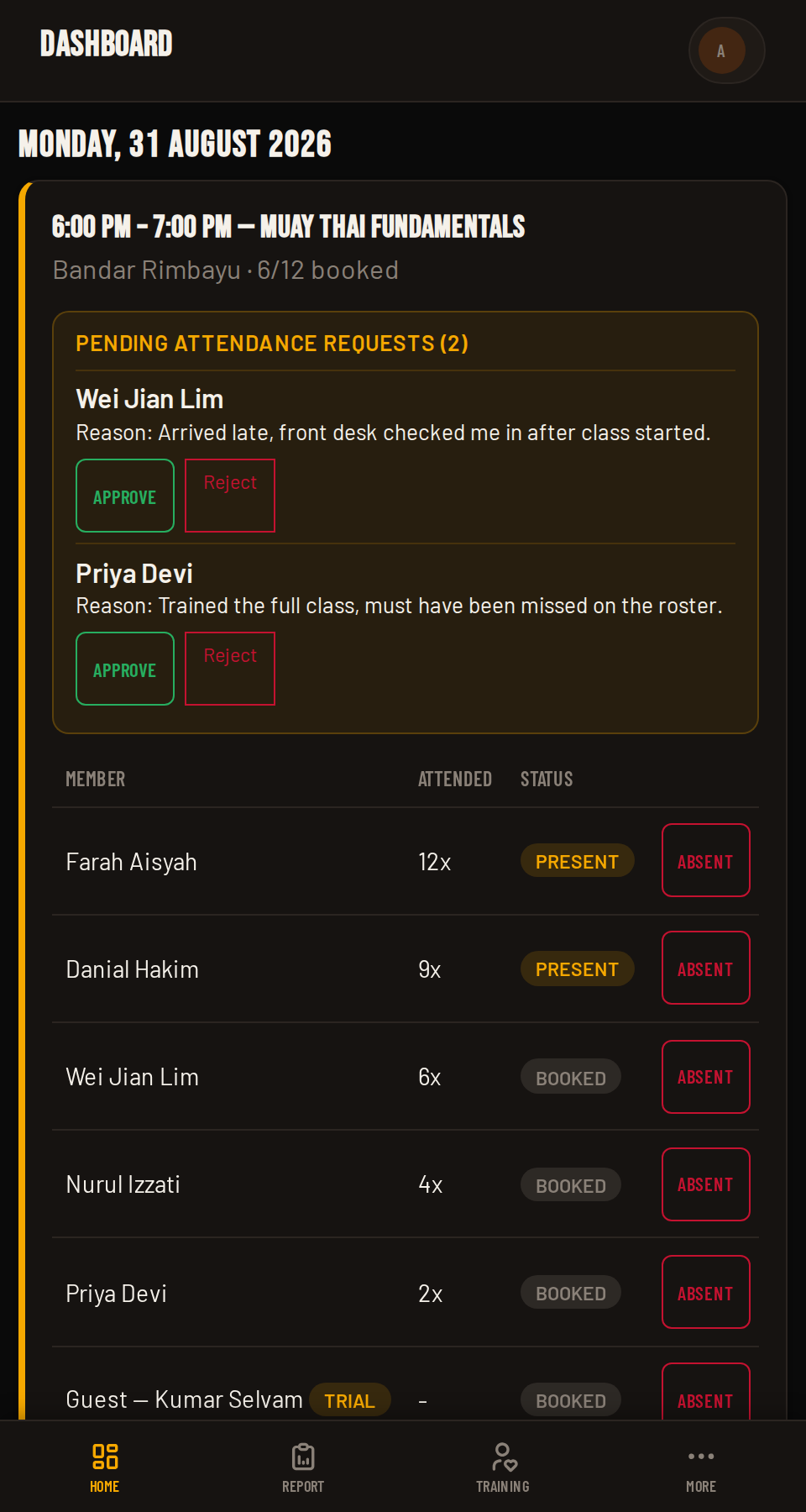
Members can normally only book up to 2 hours before a class starts. If they miss that window but the class hasn't started yet, they can send a "Request to attend" with a short reason. That request lands directly on the relevant class card in your day detail view, above the roster, tagged with a count.

02

Approving or Rejecting

Each pending request shows the member's name and their reason. You have two options:

  1. Tap Approve to book them into the class immediately (you'll be asked to confirm).
  2. Tap Reject, add a short reason, and send it, they'll see why.
You'll only ever see requests for your own classes, never another coach's.
Approving an attendance request in Coach HQ
Screenshot coming soonscreenshots/c06-requests.png
03

Where Else You'll See Them

A small badge shows the number of pending requests next to Dashboard in the sidebar and mobile nav, so you'll never have to go looking for one.

5
Level 5 of 6 ~4 min read

Level 5: Monthly Report & Assessments

Your stats for the month, and the one place you write feedback students actually see.

01

The Monthly Report Page

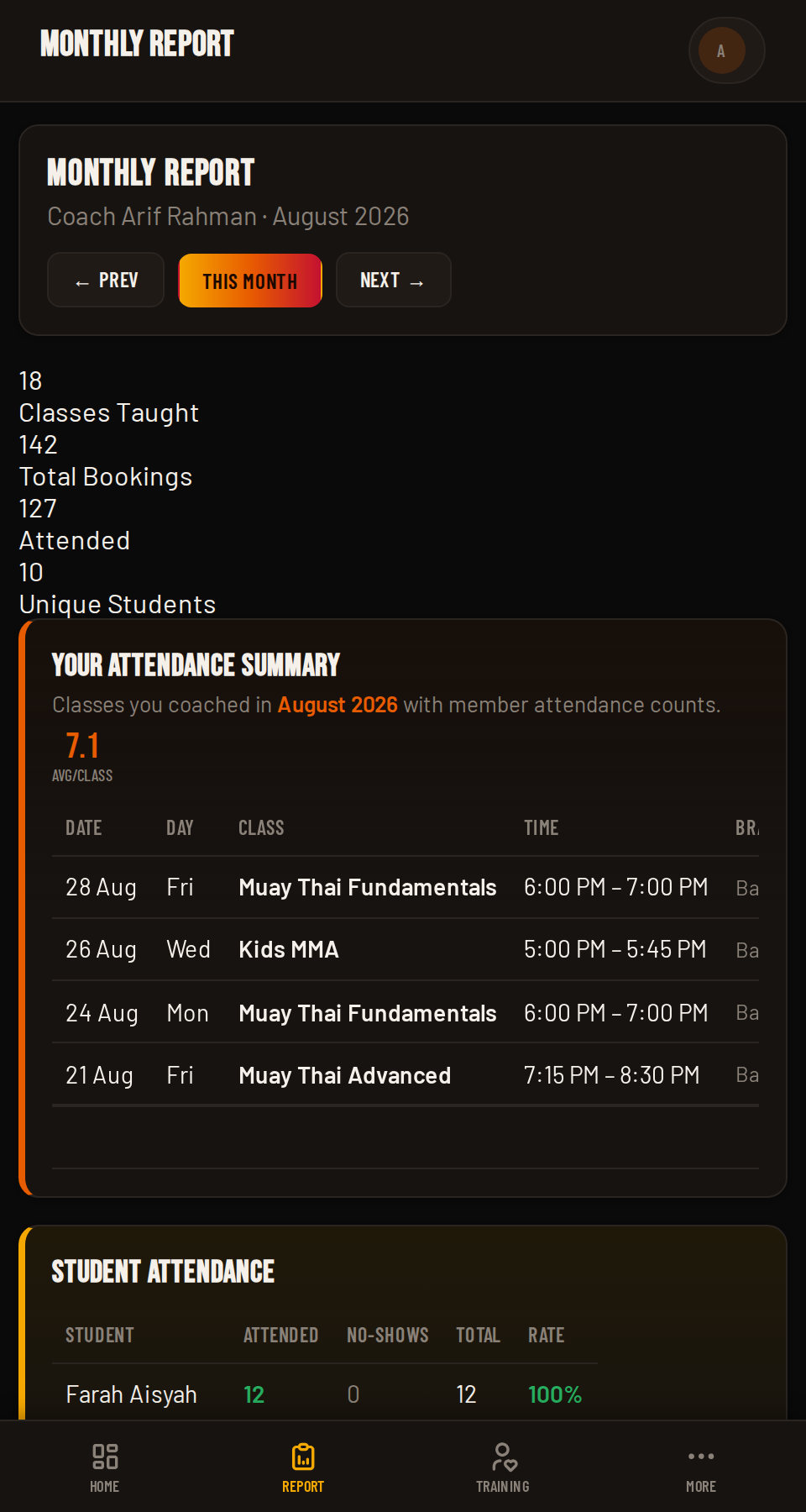
Open Monthly Report from the sidebar (or the Dashboard's "Monthly Report" quick tile). Use Prev / This month / Next to move between months. At the top you'll see four numbers for the month: Classes Taught, Total Bookings, Attended, and Unique Students.

Coach HQ Monthly Report page
Screenshot coming soonscreenshots/c07-report.png
02

Attendance Summary & Breakdown

Below the headline numbers sit two tables: Your Attendance Summary (every class you taught that month, with attended/no-show counts), and Student Attendance (every student who trained with you, with an attendance rate bar). If you had any drop-in trial or class-pass students, they get their own Walk-in Students table.

03

Writing a Student Assessment

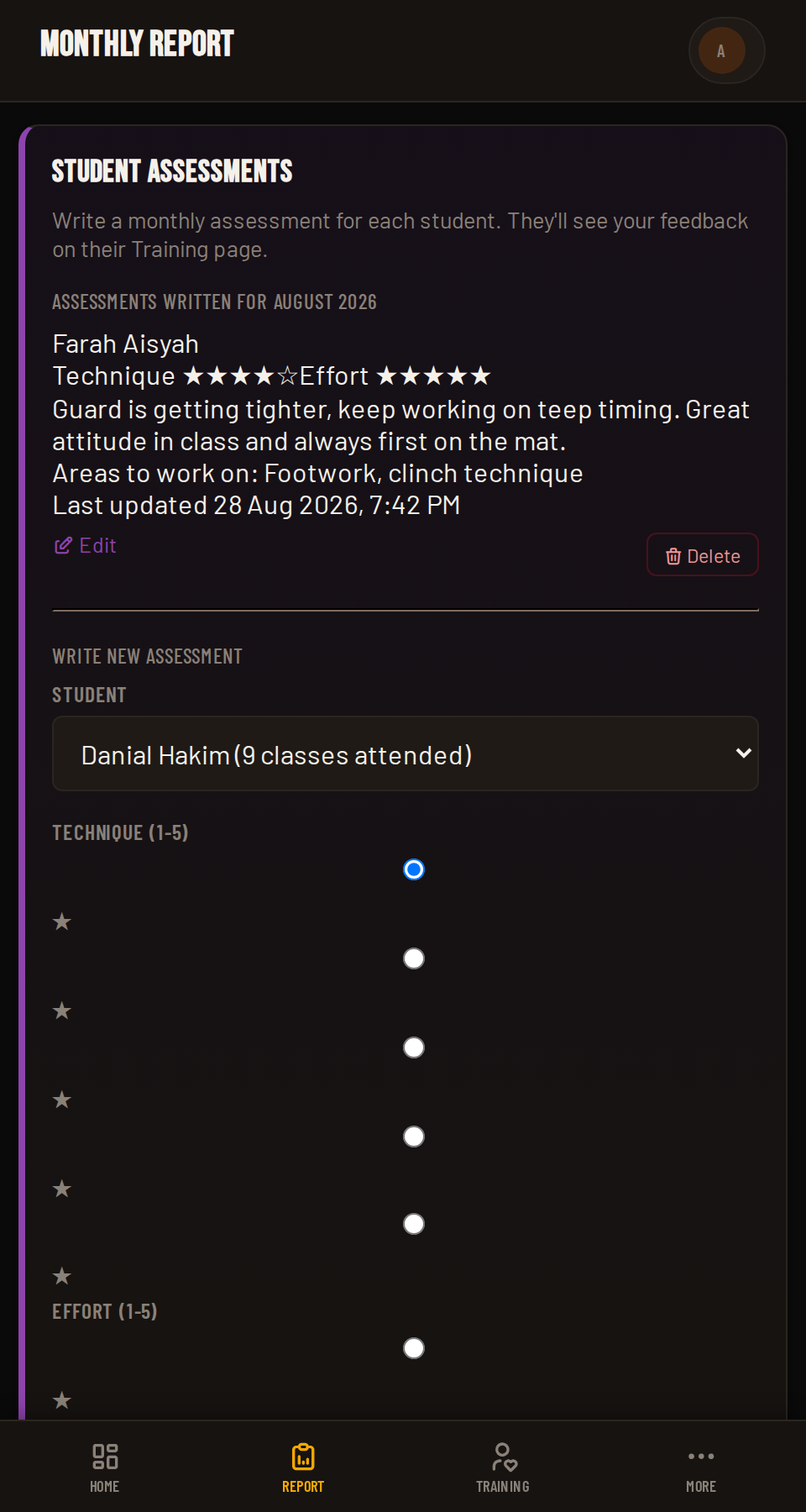
Scroll to Student Assessments. Pick a student who hasn't been assessed yet this month, rate their Technique and Effort out of 5 stars, and write your feedback (required). An "Areas to work on" note is optional.

  1. Select a student from the dropdown (only unassessed students appear).
  2. Set Technique and Effort star ratings.
  3. Write your feedback, this part is required.
  4. Optionally add areas to work on.
  5. Tap Save Assessment.
Assessments are per calendar month, one per student, and the student sees it as "Coach feedback" on their own Training page. There's no push notification, they'll see it whenever they next check.
Writing a student assessment in Coach HQ
Screenshot coming soonscreenshots/c08-assessment.png
04

Editing, Deleting & Printing

Already-written assessments for the month appear above the form. Expand Edit to change the ratings or feedback and re-save, or use Delete to remove one entirely (you'll be asked to confirm). A Print Report button at the bottom gives you a clean, printer-friendly version of the whole page.

💡
Pro tip

The Dashboard reminds you how many students still need this month's assessment, with a one-tap link straight to this section, so you never have to hunt for who's left.

6
Level 6 of 6 ~2 min read

Level 6: Good to Know

The answers you'll actually go looking for.

Automatically. Every booked student flips to Present the moment their class ends. You only need to act when someone didn't show, tap Absent on their row.

No. If a class still has zero bookings 2 hours before it's due to start, it closes itself automatically so the branch isn't running an empty session. It's not something you trigger from Coach HQ.

Yes, if admin has assigned you to more than one. Your Dashboard, calendar and reports automatically combine classes from every branch you're assigned to, and so does everything else, Personal Training requests, Sparring Challenges, and the Team Ramakien Hub (Board, Internal Calendar and unread badges) all pull in activity from every branch you coach at, not just your primary one.

Coach HQ doesn't currently have a student-profile or health-notes screen, that information lives in the member's Registration Profile, which isn't exposed on the coach side. If you need it for safety reasons, check with the front desk or admin team.

It just stays pending on the class card (and on your badge count) until you approve or reject it. Try to clear these before the class starts, since it hasn't been booked in either direction until you do.

No, only a coach can mark or undo an Absent status. Members can't edit their own attendance record.

Not automatically. It appears as "Coach feedback" on their Training page whenever they next open it, there's no push notification sent.

Yes, any time within that calendar month. Open the assessment on the Monthly Report page and tap Edit to change the ratings or feedback, or Delete to remove it entirely.

Ask the admin team to reset it for you, the same way a member's PIN gets reset at the front desk.

Coach HQ automatically logs you out after 15 minutes of inactivity, for security, the same rule as the member side. Just log back in with your phone and PIN.

Yes. Open the coach site in your phone's browser, then choose "Add to Home Screen" (Safari) or "Install app" (Chrome). It launches full-screen, no App Store download needed.

Group classes on the Dashboard are auto-attendance and need no response from you until the class happens. Personal Training (Level 7) is a direct 1-on-1 or small-group booking with you specifically, so a member's request sits in "Needs your response" until you confirm a time.

No. Every sparring challenge, even one two members already agreed to informally, sits as "Needs Approval" until a coach or admin approves and schedules it in Sparring Challenges (Level 8). Nothing is confirmed without that sign-off, for safety and supervision.

No, never. Team Ramakien Hub (Level 9) — the Team Board, Internal Calendar and Messages — is visible only to coaches and admin staff. Nothing posted there reaches a member's account, in any form.

Starting a new Team Board post or Internal Calendar event is limited to Super Admins and Admins, so branch-wide announcements stay consistent. As a coach you can read every post, reply to any of them, @mention a teammate, and RSVP to events — you just can't kick off a brand-new post or event yourself. Need to reach one specific person instead? Use Messages.

Yes. Your short bio and specialty tags on My Profile (Level 10) are visible to members on class rosters and the coach directory. Your name, role and branch are shown too, but those are set by your branch admin, not editable from your side.

7
Level 7 of 11 ~3 min read

Level 7: Personal Training

One-on-one (or small-group) sessions members book with you directly, separate from your regular group classes.

01

What Personal Training Is

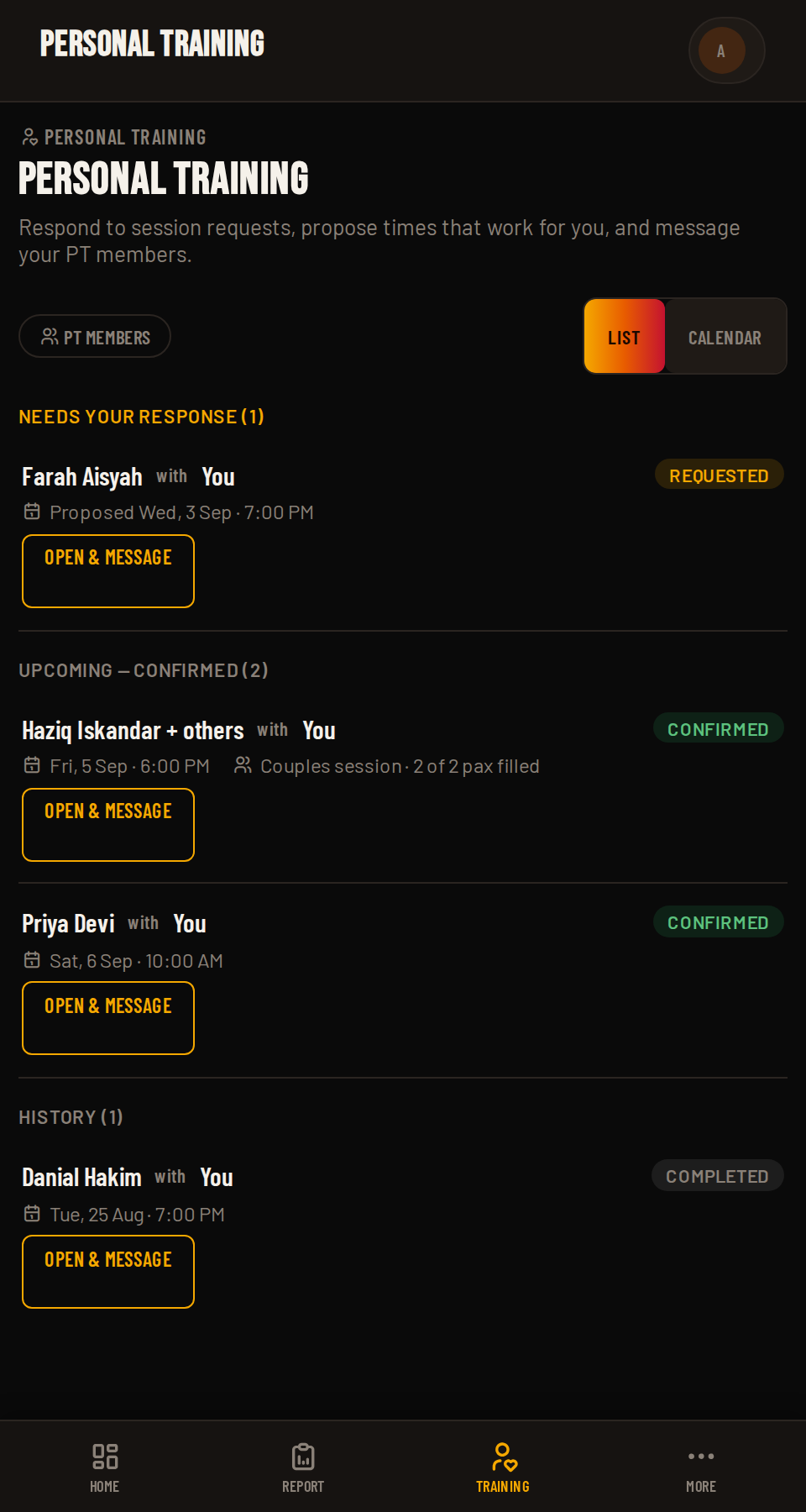
Personal Training is a direct, paid booking between a member and a specific coach, either a private 1-on-1 session or a small group of up to four people (a "couples session" or similar). It's completely separate from the group classes on your Dashboard: nothing here is auto-attendance, and nothing is confirmed until you respond. Find it in the sidebar under Personal Training, with a badge showing anything waiting on you.

Coaching at more than one branch? Members eligible for Personal Training with you show up here from every branch you're assigned to, and a new request you propose is automatically tied to that member's own branch.
Personal Training list in Coach HQ
Screenshot coming soonscreenshots/c09-pt-list.png
02

Responding to a Request

New requests land in Needs your response at the top of the list, showing who wants to train and their proposed date and time.

  1. Open Personal Training from the sidebar.
  2. Find the request under "Needs your response".
  3. Tap Open & message to see the full thread.
  4. Confirm the proposed time, or message the member to work out a different one.
Switch between List and Calendar view with the toggle at the top of the page, whichever's easier for spotting a free slot.
03

Confirmed Sessions & Messaging

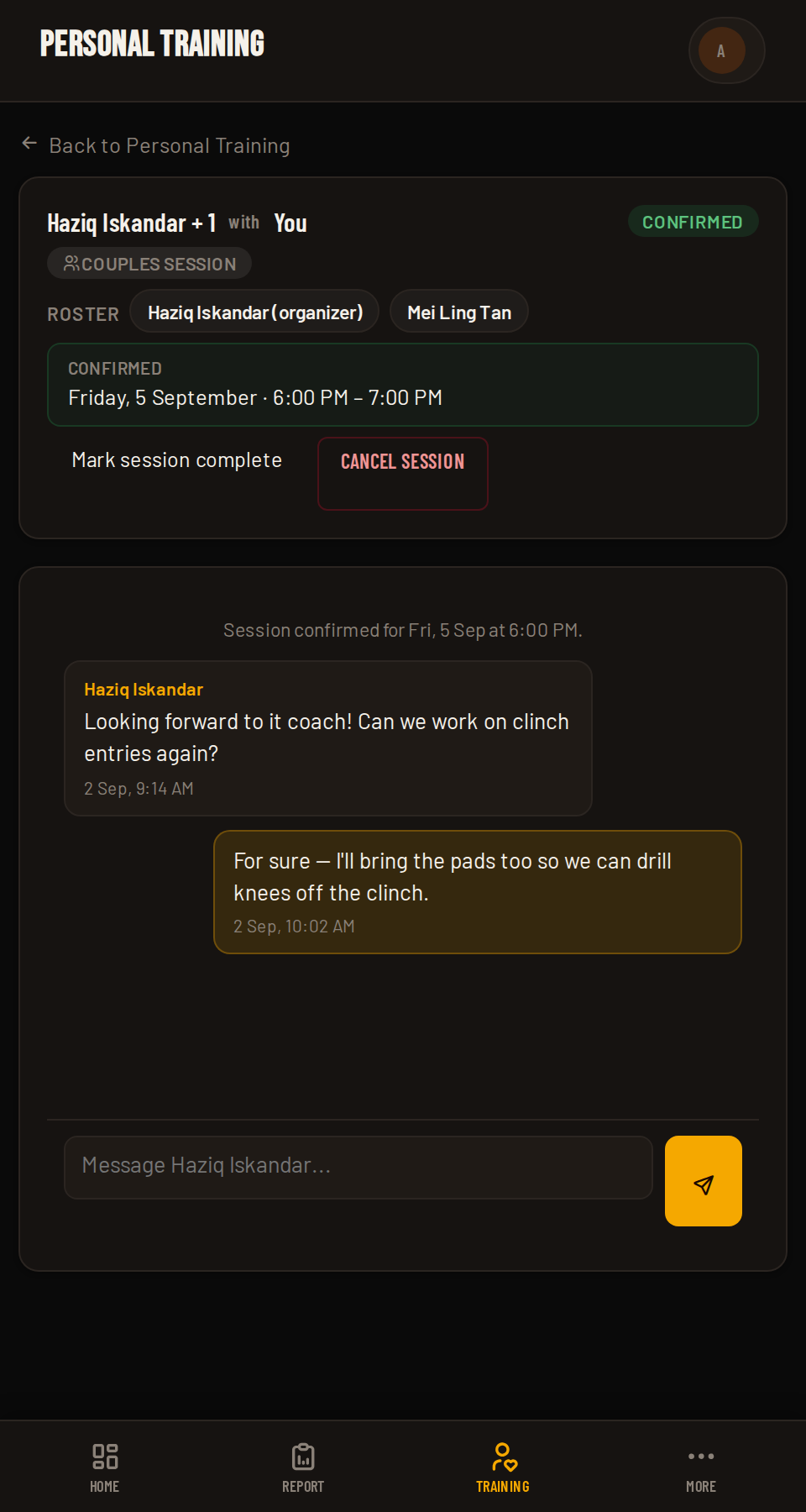
Once you and the member agree on a time, the session moves to Upcoming — confirmed with the date and time locked in. Opening it shows a running message thread with the member, so you can share notes, gear reminders or last-minute changes before the session.

Personal Training session thread in Coach HQ
Screenshot coming soonscreenshots/c10-pt-thread.png
04

Group & Couples Sessions

Some sessions have more than one member on the roster, up to four, shown as chips at the top of the thread (the organizer is marked). Everyone on the roster shares the same confirmed time and the same message thread.

05

Completing or Cancelling

Once the session's happened, open it and tap Mark session complete, it moves to History. If it can't go ahead, tap Cancel session instead (you'll be asked to confirm either way).

Requested Confirmed Completed Cancelled / Declined
8
Level 8 of 11 ~3 min read

Level 8: Sparring Challenges

Members can challenge each other to spar, but nothing happens until a coach or admin signs off.

01

Nothing's Scheduled Without You

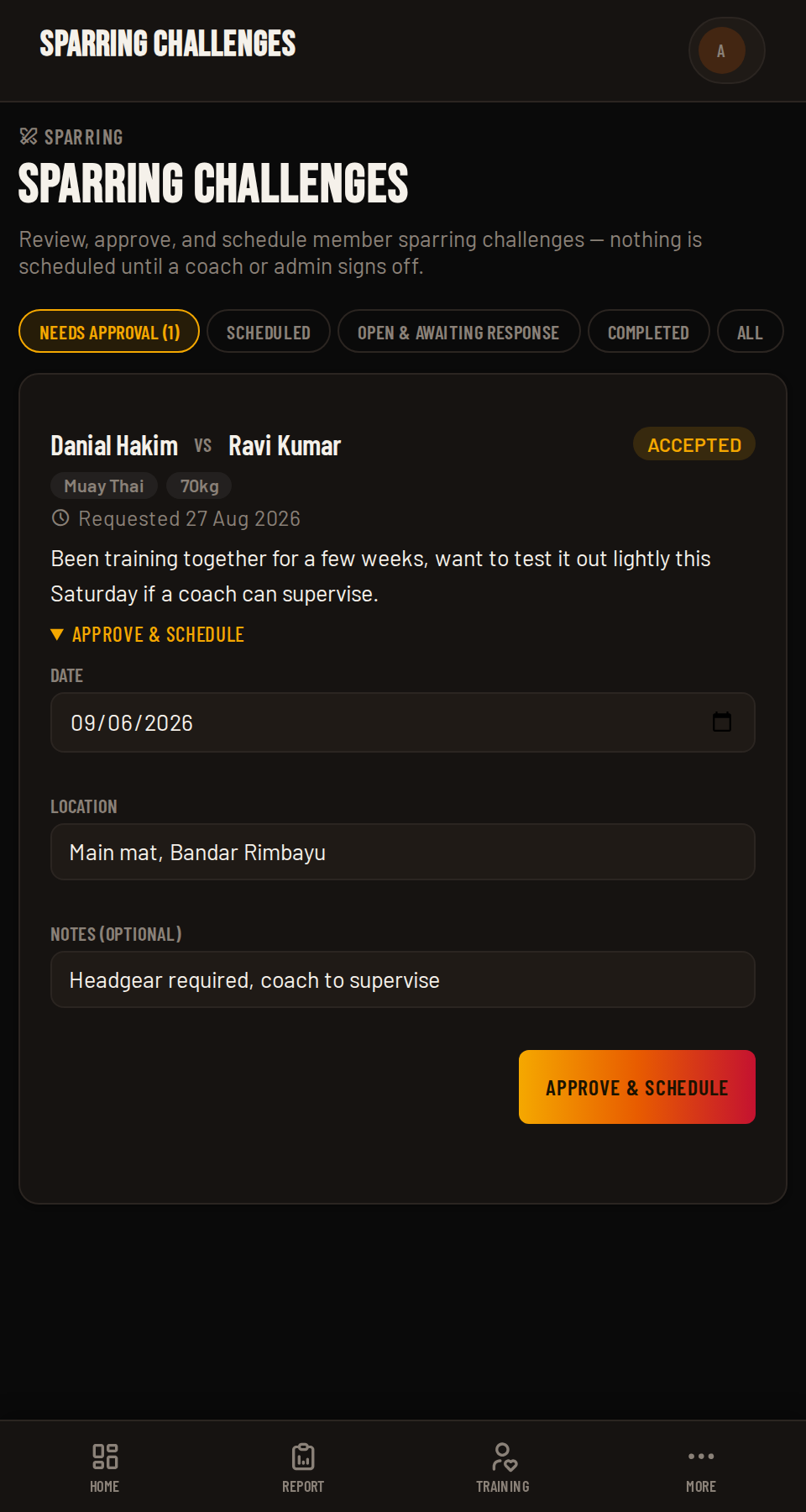
Members can send each other sparring challenges tagged with a discipline (e.g. Muay Thai) and a weight class, along with a short message. However friendly the arrangement between them, it stays in Needs Approval until a coach or admin approves and schedules it, this keeps supervision and safety in your hands, every time.

Sparring Challenges in Coach HQ
Screenshot coming soonscreenshots/c11-sparring.png
02

Reviewing a Challenge

Each card shows the matchup, discipline and weight-class tags, when it was requested, and the requester's message. Use the tabs above the list, Needs Approval, Scheduled, Open & Awaiting Response, Completed, All, to filter what you're looking at.

Assigned to more than one branch? This list, and your approval powers, cover challenges from every branch you're assigned to, not just one.
03

Approving & Scheduling

Open Approve & schedule on a card to set it up.

  1. Set the date for the match.
  2. Set the location (which mat / branch area).
  3. Add any safety or matching notes, e.g. headgear required.
  4. Tap Approve & schedule.
A card that's still "Open" is waiting on a second member to accept the challenge before it's ready for your approval.
04

Logging a Result

After a scheduled match takes place, open it under Scheduled and log the result to move it to Completed and close it out properly.

💡
Pro tip

A badge next to Sparring in the sidebar tells you at a glance how many challenges are sitting in "Needs Approval" right now.

9
Level 9 of 11 ~4 min read

Level 9: Team Ramakien Hub

An internal space for coaches and admin staff only, never visible to members, split across three tabs.

01

What Team Ramakien Hub Is

Team Ramakien Hub is the staff-only corner of FightHub: Team Board, Internal Calendar and Messages, reachable from the sidebar section of the same name. Nothing posted here, in any of the three tabs, is ever visible to a member's account. It's where the coaching team talks shop, coordinates events, and reaches each other directly.

Coaching at more than one branch? Team Board and Internal Calendar combine posts and events from every branch you're assigned to (plus anything marked "All Staff"), and your unread badges count activity across all of them, too.
02

Team Board: Reading & Replying

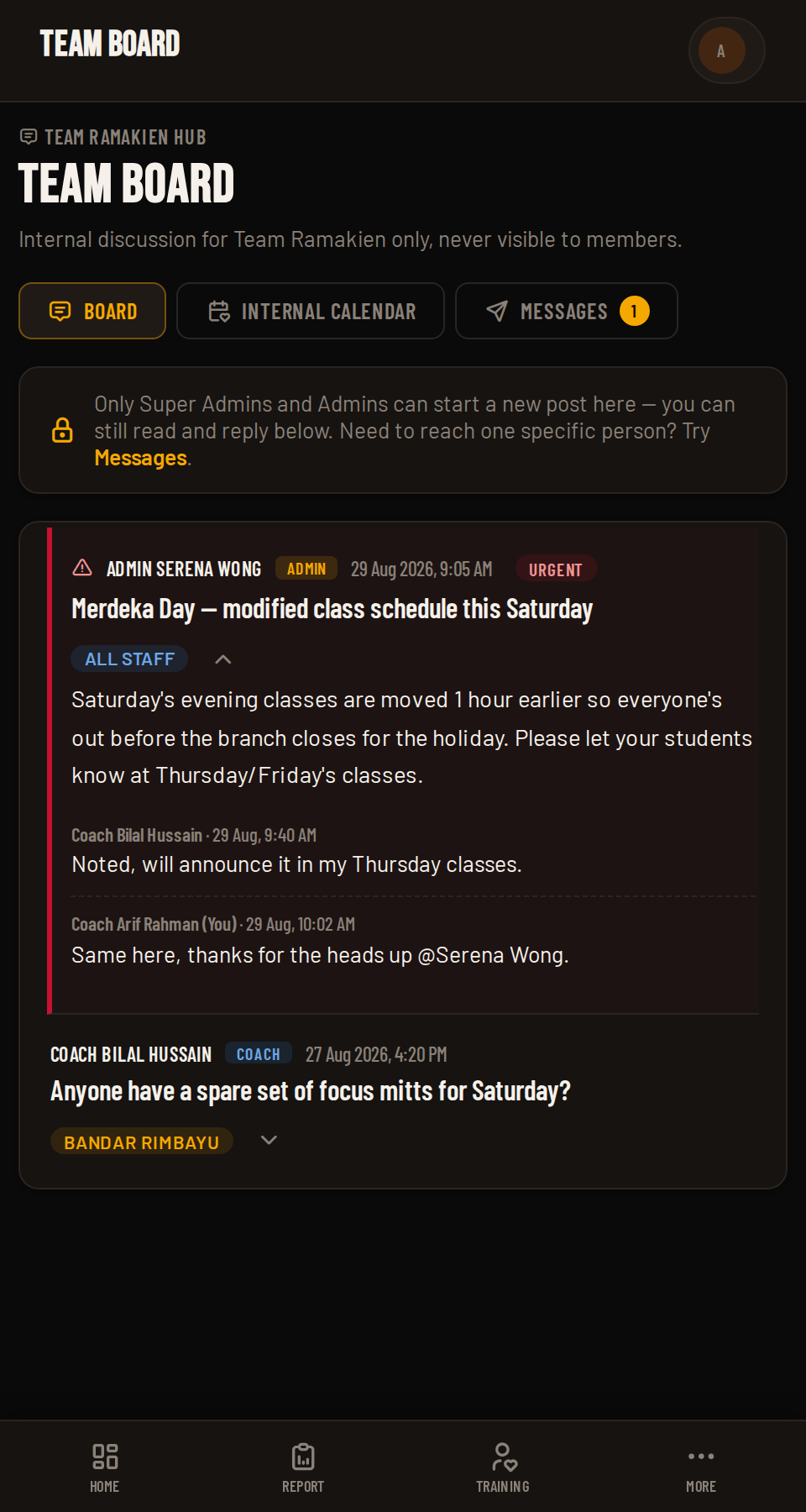
Starting a brand-new post is limited to Super Admins and Admins, so you'll see a note instead of a compose box, but you can read every post and reply to any of them. Posts collapse to a one-line summary; tap one to expand it. An urgent post gets a red highlight and stays expanded by default so it can't be missed, and each post is tagged with a branch (or "All Staff") and the poster's role.

  1. Open Team Board under Team Ramakien Hub.
  2. Tap a post to expand it and read replies.
  3. Type your reply and send it, or @mention a specific teammate to make sure they see it.
Team Board in Coach HQ
Screenshot coming soonscreenshots/c12-team-board.png
03

Internal Calendar & RSVPs

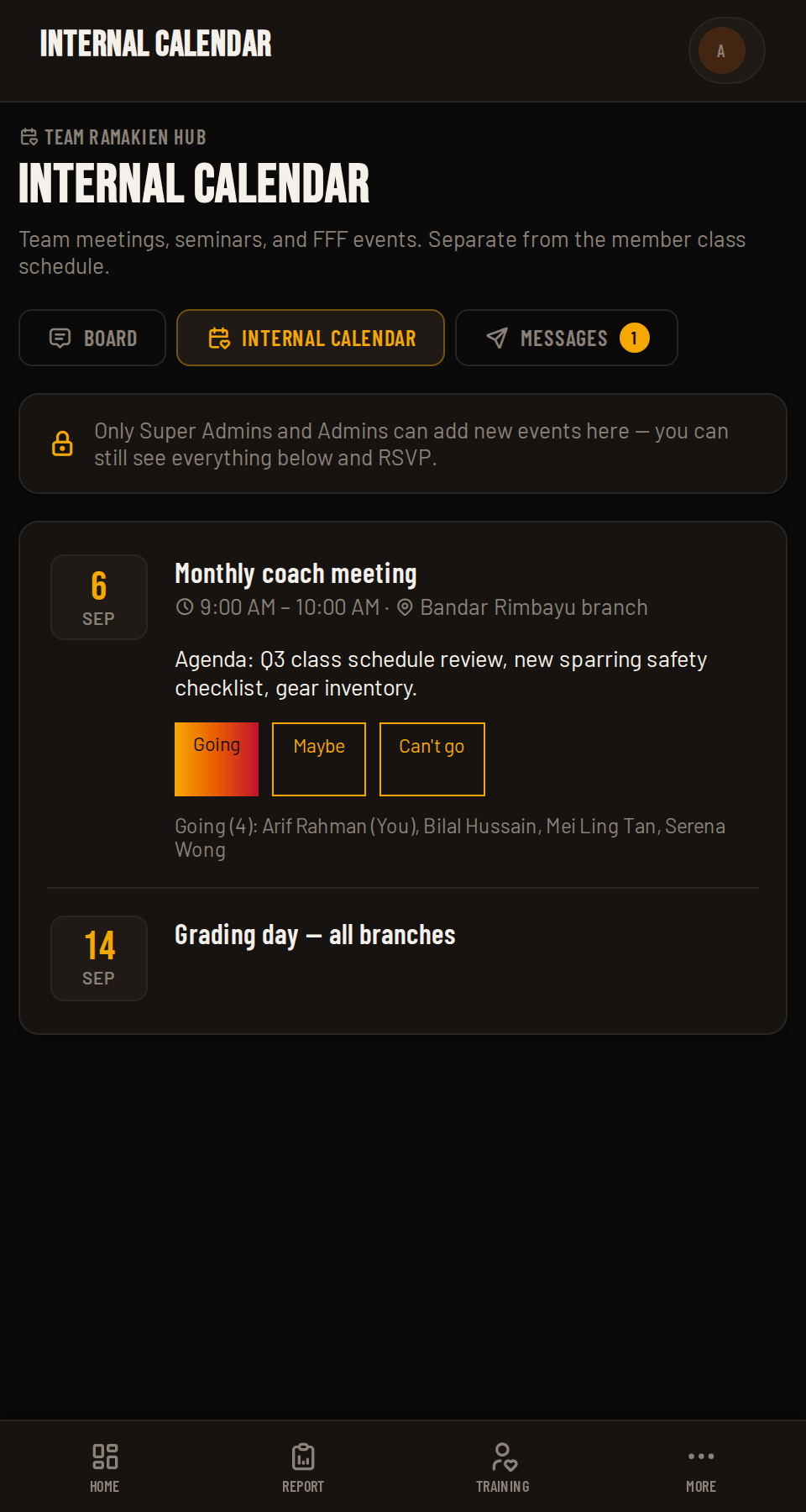
Team meetings, seminars and FFF events live here, entirely separate from the member class schedule. Admin adds the events; your part is to RSVP, Going, Maybe or Can't go, so the team knows who's showing up.

The full attendee list is visible under each event, so you can see who else is going before you decide.
Internal Calendar in Coach HQ
Screenshot coming soonscreenshots/c13-internal-calendar.png
04

Messages & @Mentions

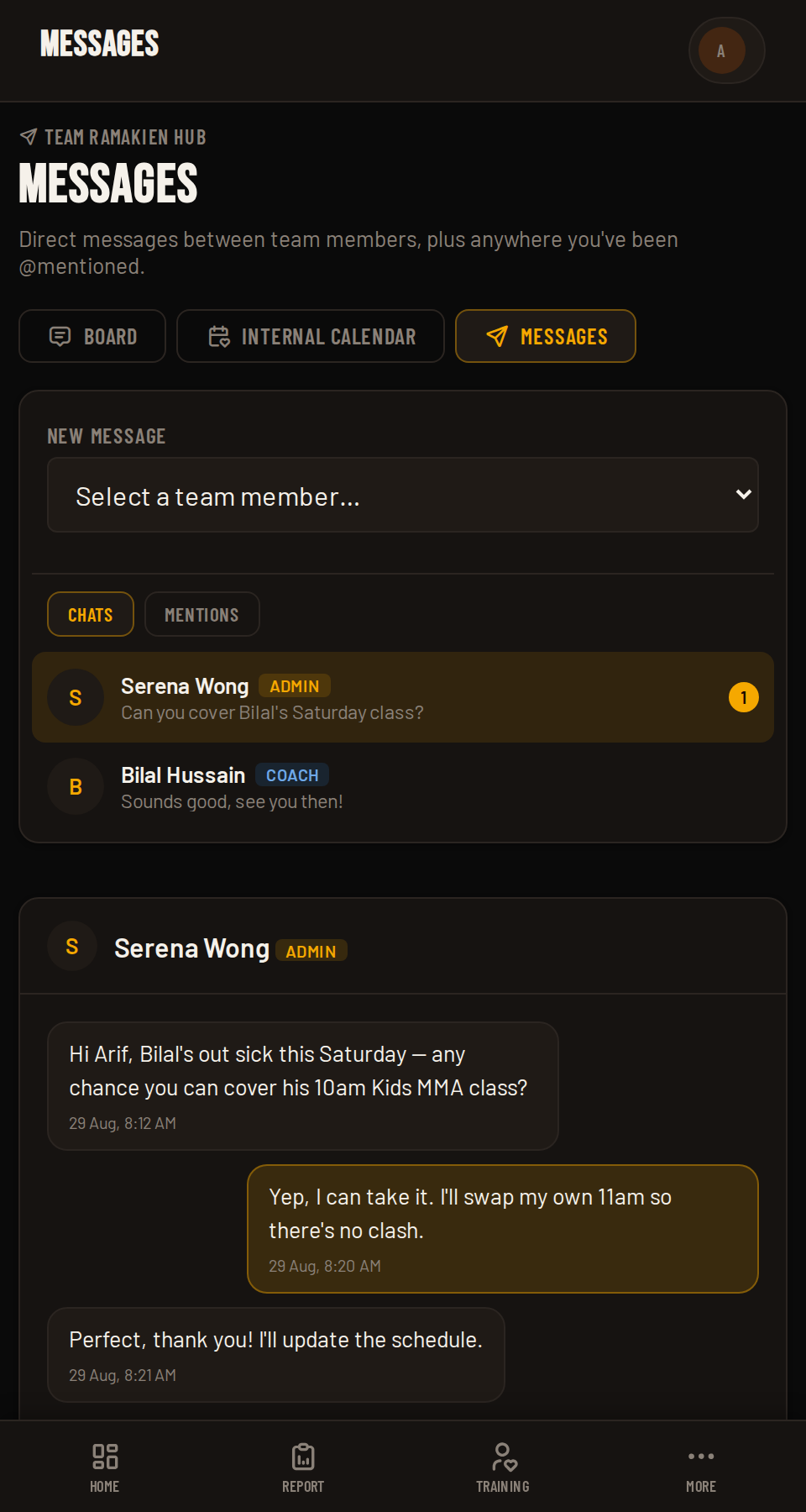
Need to reach one specific person rather than the whole team? Use Messages, pick a teammate from "New message" and chat directly, just like the Personal Training thread. A Mentions tab collects every Board post or reply where someone typed @ and your name, so you never have to scroll back looking for it. Typing @ in any Board post, reply or message brings up an autocomplete list of teammates to tag.

Messages in Coach HQ Team Ramakien Hub
Screenshot coming soonscreenshots/c14-messages.png
05

Badges Across the Hub

A small unread count appears next to each of the three tabs in the sidebar, Board, Internal Calendar and Messages, whenever there's something new for you to see.

10
Level 10 of 11 ~2 min read

Level 10: My Profile

The public-facing side of your coach account, what members see about you.

01

What's on My Profile

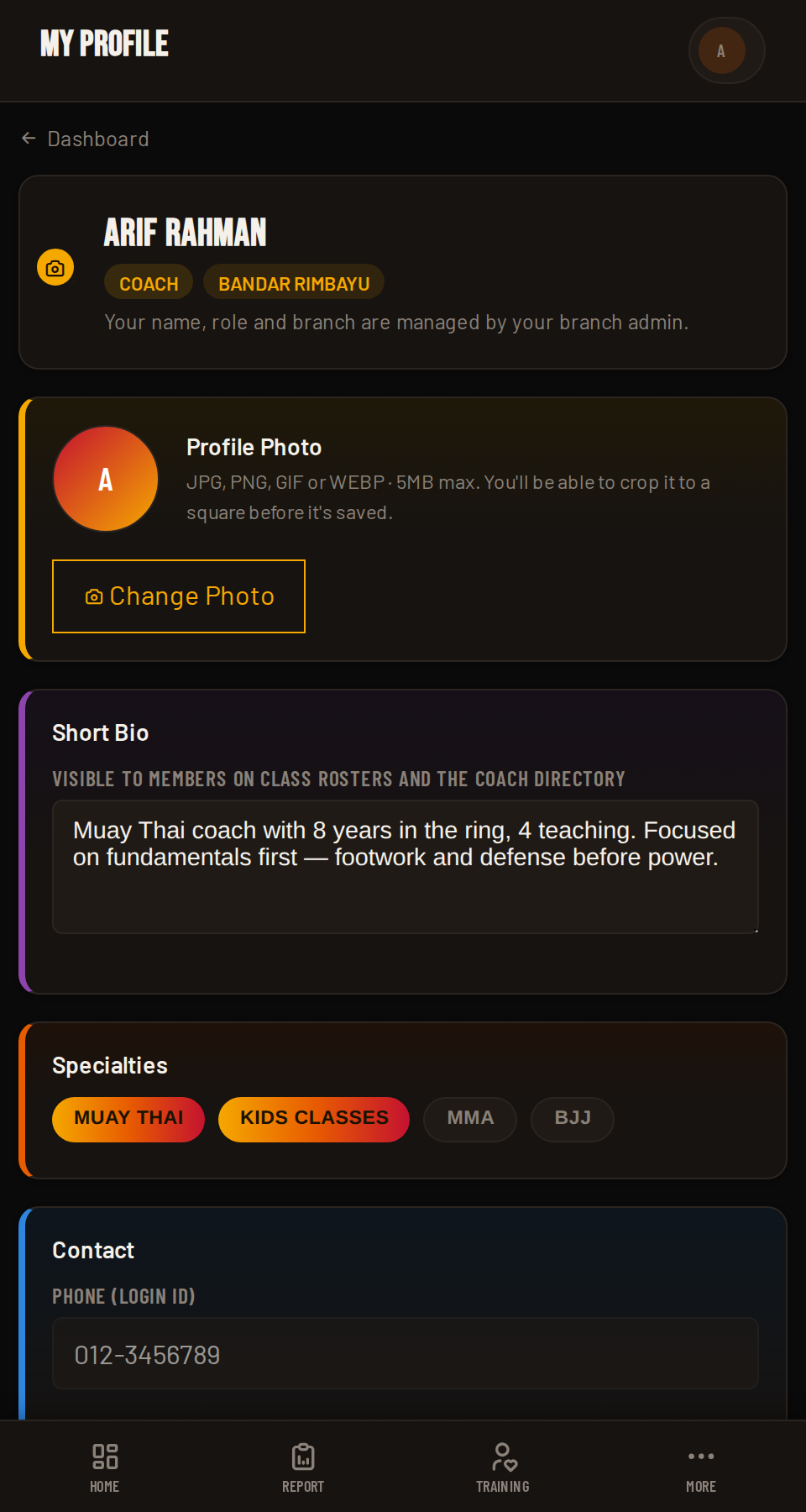
Your name, role and branch are shown at the top, but they're set by your branch admin, not something you can change here. Everything below that, photo, bio, specialties and contact details, is yours to edit, and your bio and specialties are visible to members on class rosters and the coach directory.

My Profile page in Coach HQ
Screenshot coming soonscreenshots/c15-my-profile.png
02

Profile Photo

Tap Change Photo to upload a new one (JPG, PNG, GIF or WEBP, 5MB max). You'll be able to crop it to a square before it saves.

03

Bio & Specialties

Write a short bio members will see on class rosters and the coach directory, then pick which specialties apply to you (e.g. Muay Thai, Kids Classes, MMA, BJJ). Selected specialties stand out with the brand gradient, unselected ones stay neutral.

04

Contact Info

Your phone number is also your login ID, so it's shown read-only here, contact an admin if it needs to change. Your email address is yours to update directly.

Looking for your PIN instead? That's on the Settings page, Level 11 next.
11
Level 11 of 11 ~2 min read

Level 11: Settings

Your PIN, your notification preferences, and a quick look at your account status. The final level, congratulations.

01

Changing Your PIN

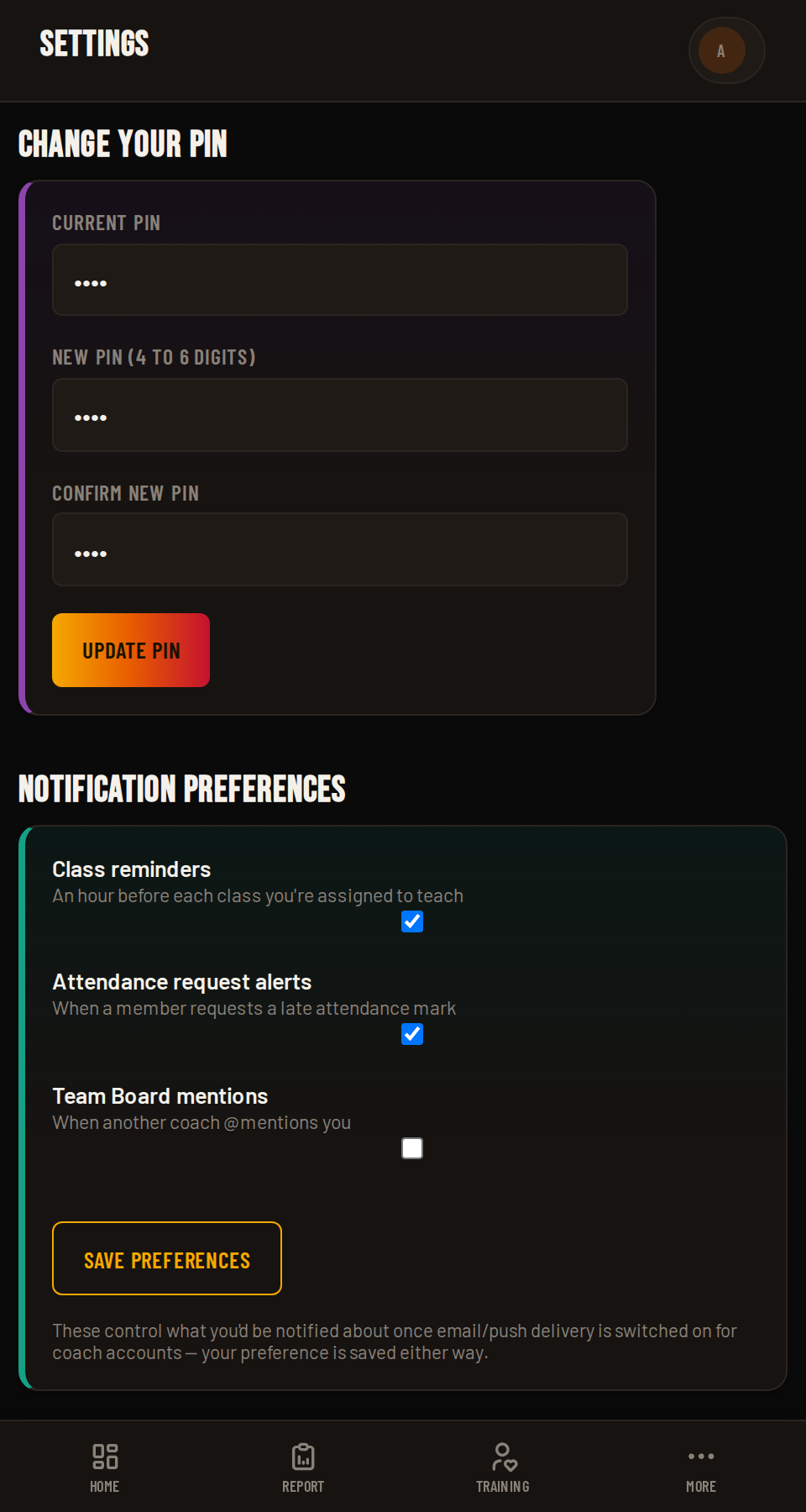
Open Settings from the sidebar to change the PIN you log in with.

  1. Enter your current PIN.
  2. Enter a new PIN (4 to 6 digits).
  3. Confirm the new PIN.
  4. Tap Update PIN.
Forgot your current PIN entirely? Ask the admin team to reset it, the same as Level 6's FAQ covers.
Settings page in Coach HQ
Screenshot coming soonscreenshots/c16-settings.png
02

Notification Preferences

Toggle what you'd want to hear about: Class reminders (an hour before each class you're assigned to teach), Attendance request alerts (when a member requests a late attendance mark), and Team Board mentions (when another coach @mentions you). Your choice is saved either way, ready for whenever email/push delivery is switched on for coach accounts.

03

Account Info

A read-only summary of your branch, role and account status sits at the bottom, useful for a quick sanity check without digging through My Profile.

💡
Pro tip

Looking to change your photo, bio or specialties instead of your PIN? Settings links straight back to My Profile (Level 10) for that.